
Guide
How to send a photo by email or text message
We'll attach a picture from your computer or phone and send it to someone. Take your time — you are doing great.
Which device are you using?
Steps look different on each one. Tap yours and we'll tailor every step for you.
Open your email or messages app
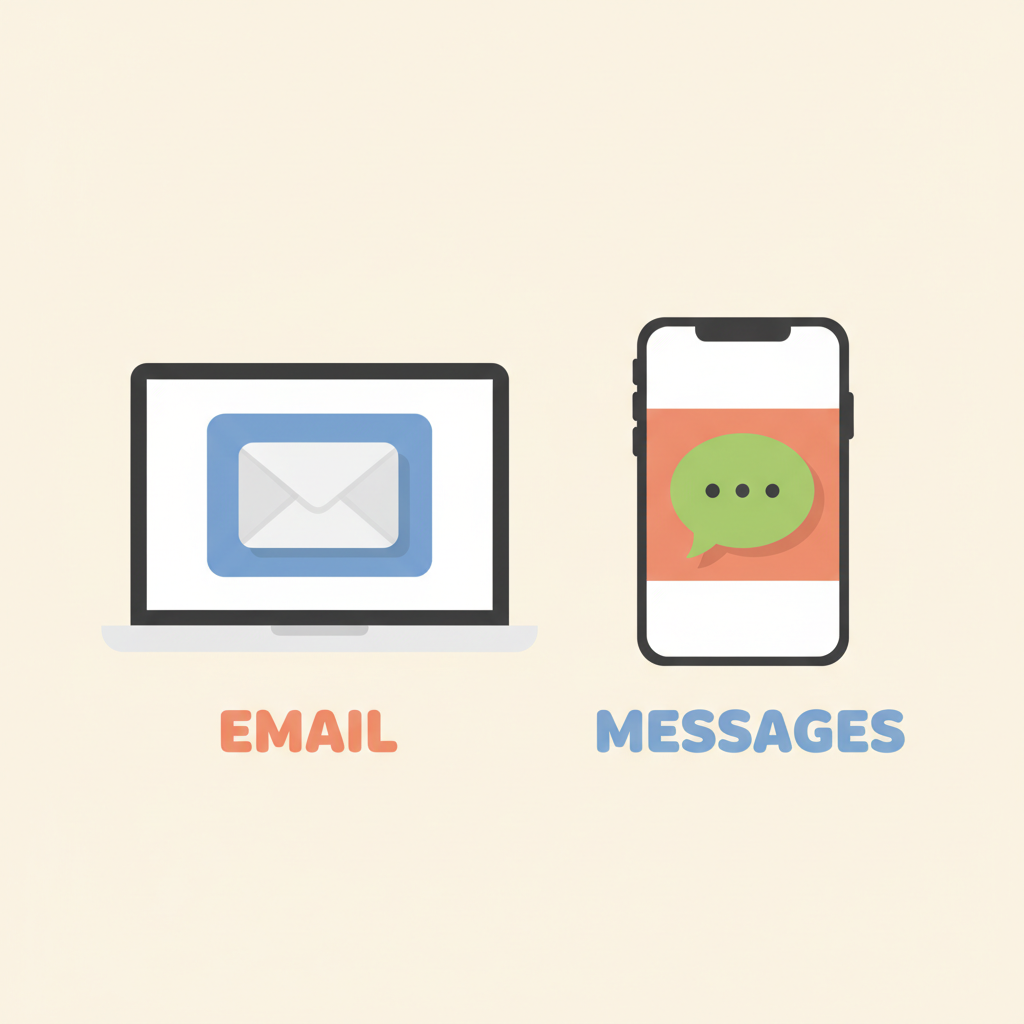
On a computer, click the white envelope icon for email. On a phone, tap the green Messages bubble for text, or the envelope for email.
Start a new message

Look for a button that says 'Compose', 'New', or has a pencil icon. It is usually in the top-right corner. Click or tap it once.
Type the person's address
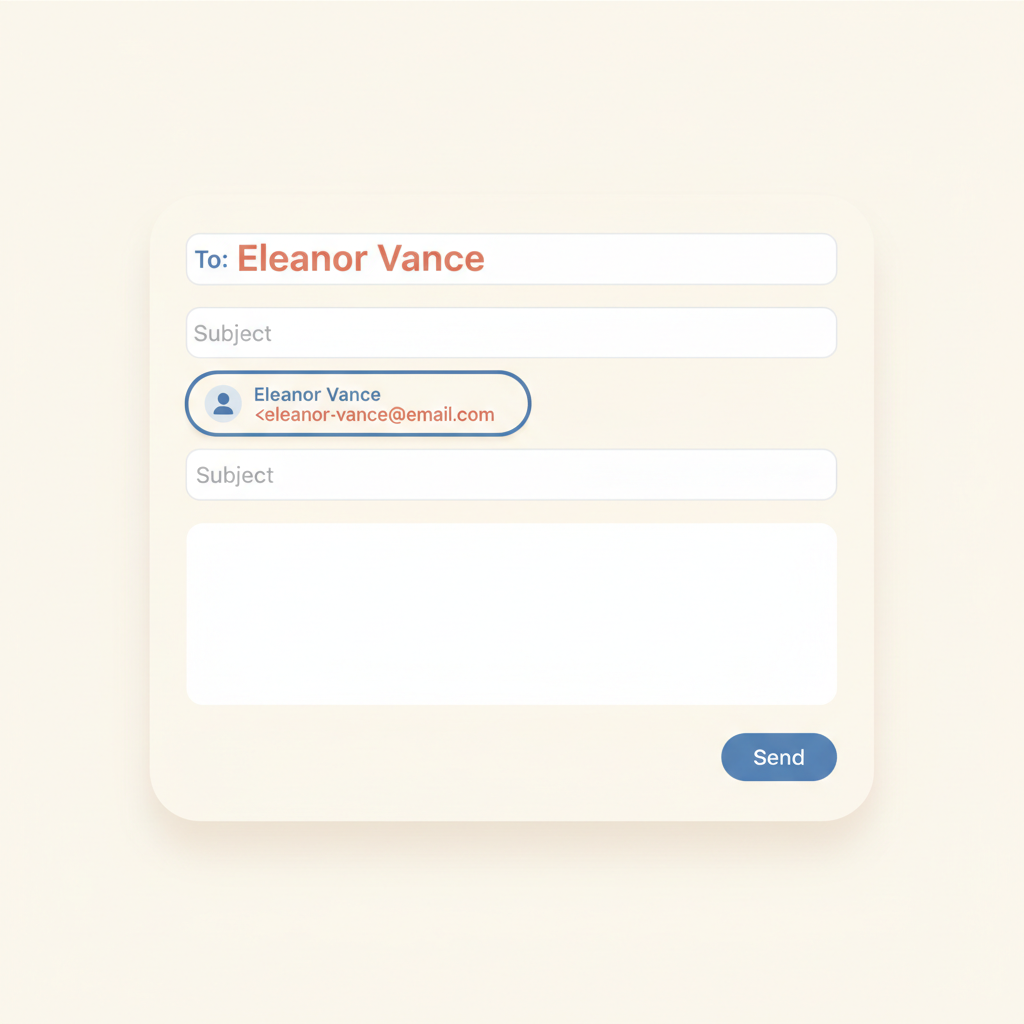
In the 'To' box, type the email address or phone number of the person you want to send to. Email addresses always have the @ symbol.
💡 If you've messaged them before, just start typing their name and tap their entry when it appears.
Find the paperclip or camera button

On a computer email, click the small paperclip icon. On a phone, tap the camera or plus (+) icon next to where you type. This lets you choose a photo.
Pick your photo
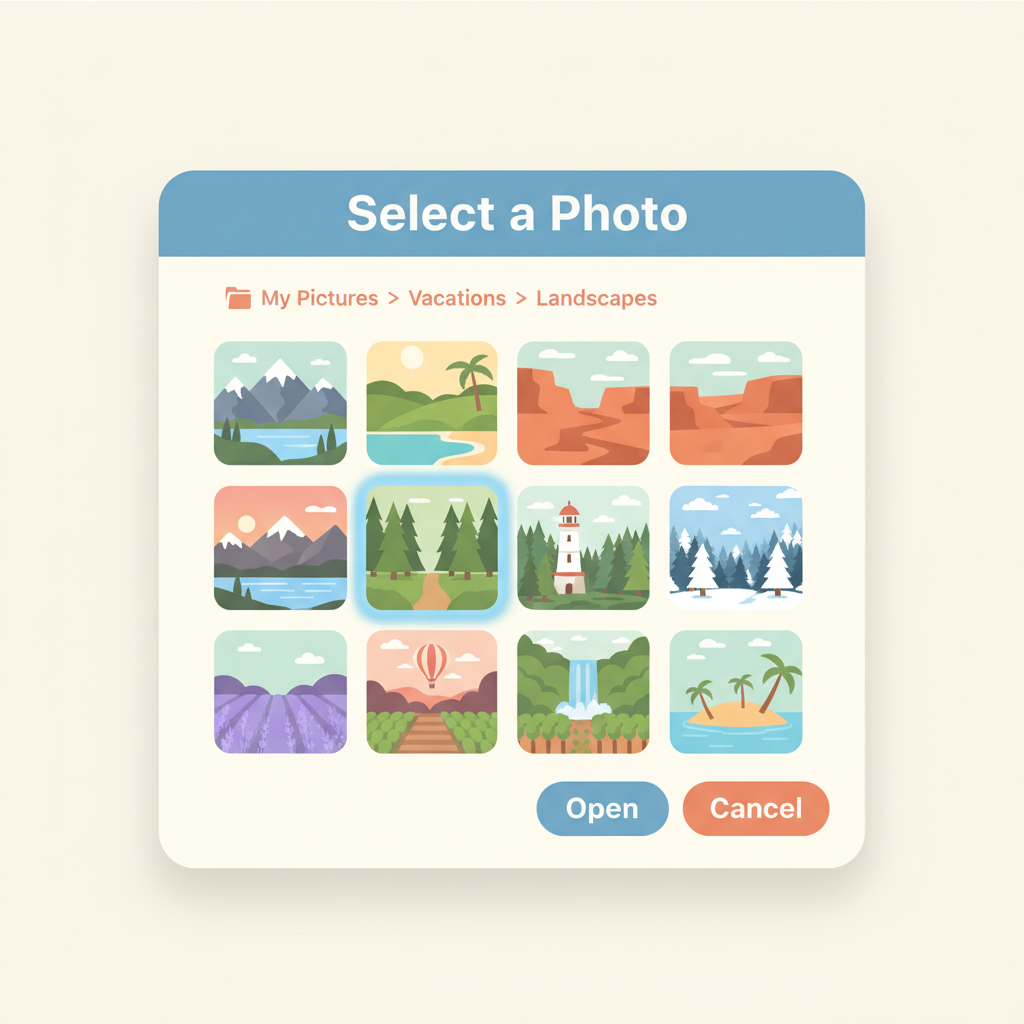
A window opens showing your pictures. Click or tap the one you want. A small preview of the photo will appear in your message.
💡 To send more than one photo, hold the Control key (Command on Mac) and click each photo.
Add a short message and press Send
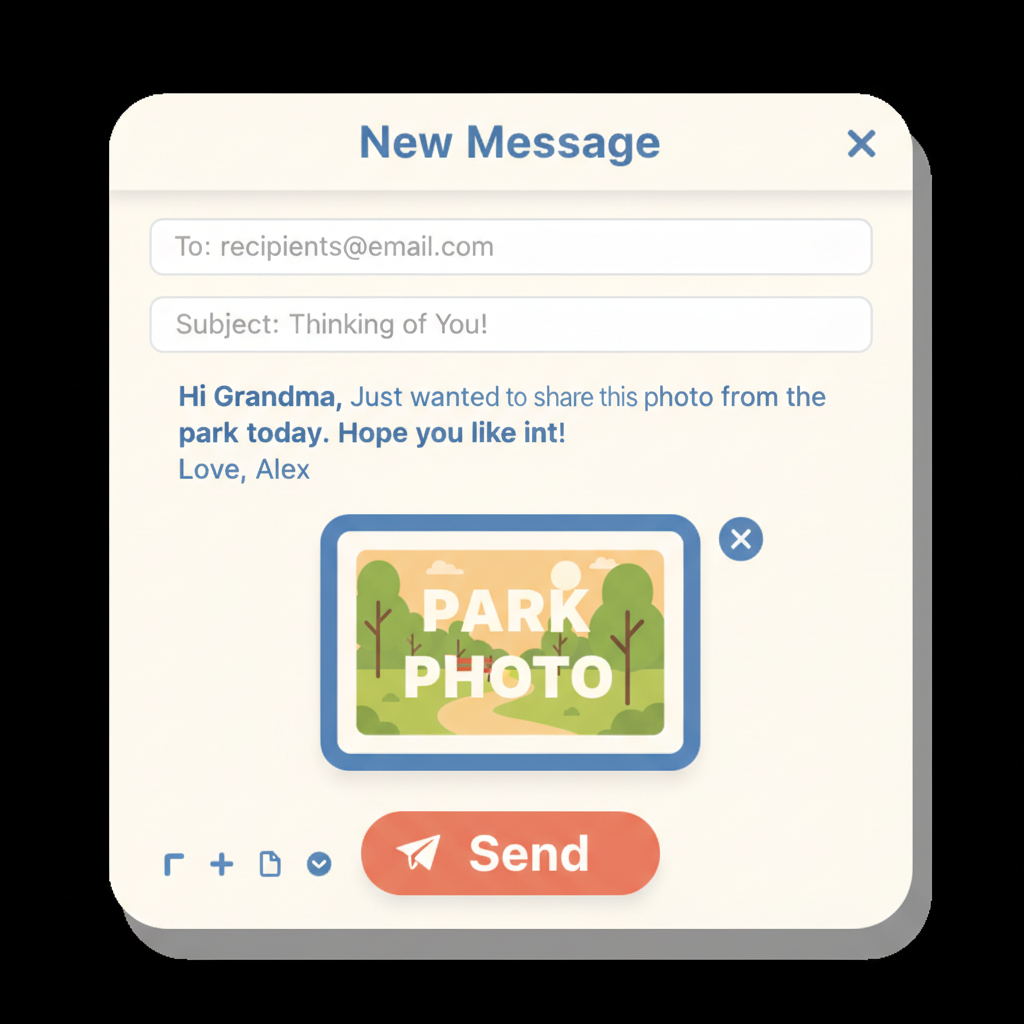
Type a friendly note like 'Look at this!' so the person knows what it is. Then click the blue 'Send' button — usually a paper-airplane shape. Your photo is on its way!

Stuck on a step?
Take a picture of your screen and I will tell you exactly what to click.
New to screenshots? On Windows press the "PrtScn" key. On a Mac press Shift + Command + 4.