
Guide
My printer says 'offline' or won't print
Almost every printer problem is fixed by checking three things: power, paper, and the connection. Let's go.
Which device are you using?
Steps look different on each one. Tap yours and we'll tailor every step for you.
Check the printer is on and awake
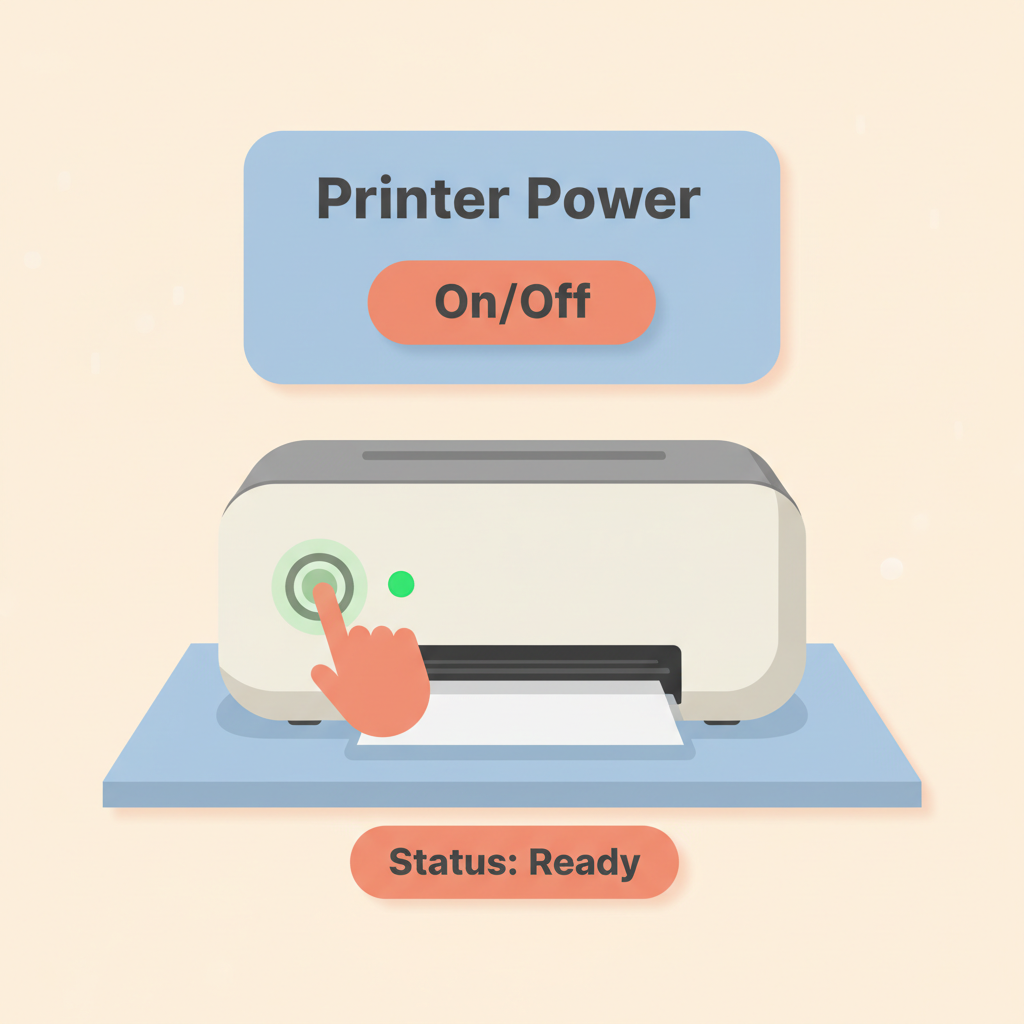
Look for a power light on the front of the printer. If it's off, press the power button. If it's blinking, wait until it stops — it's warming up.
Look for error lights or messages
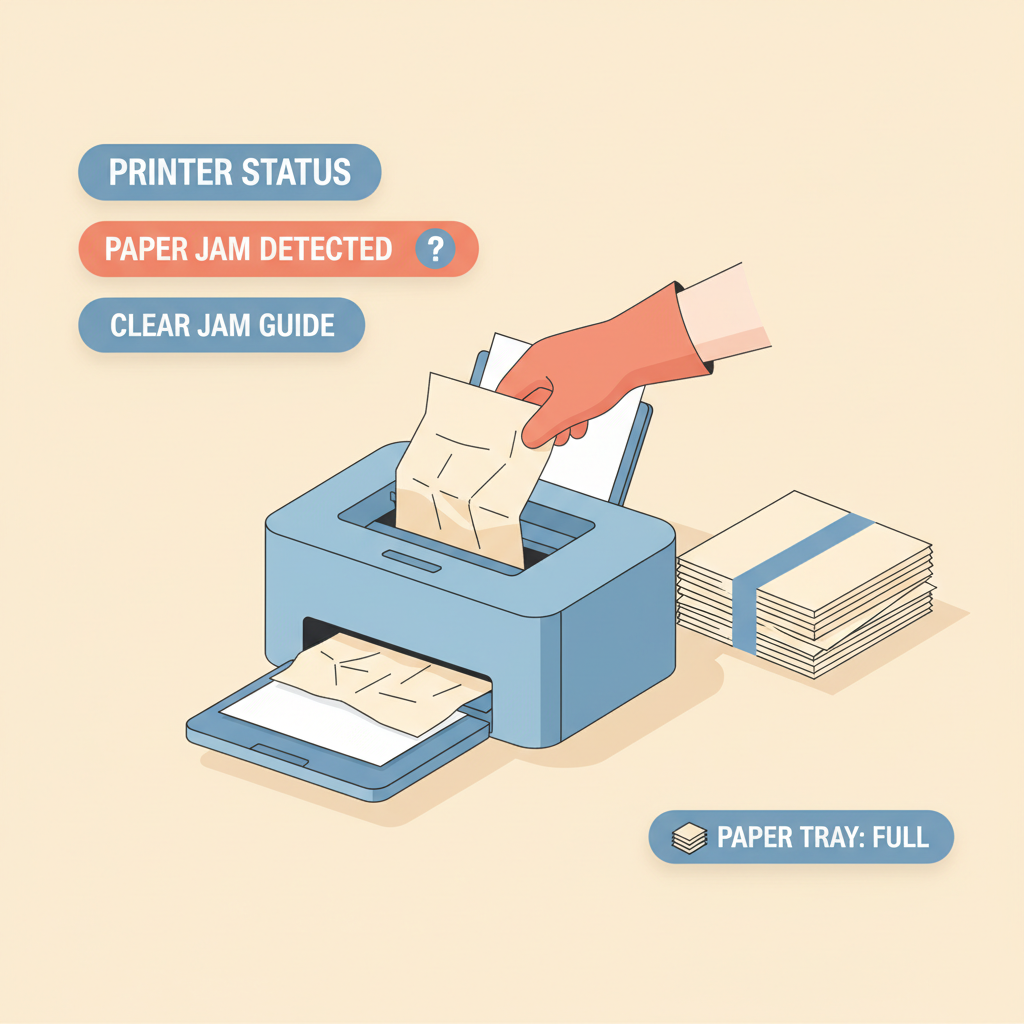
An orange or red light usually means paper jam, low ink, or no paper. Open the front cover, gently remove any stuck paper, and add fresh paper to the tray.
Check the cable or Wi-Fi
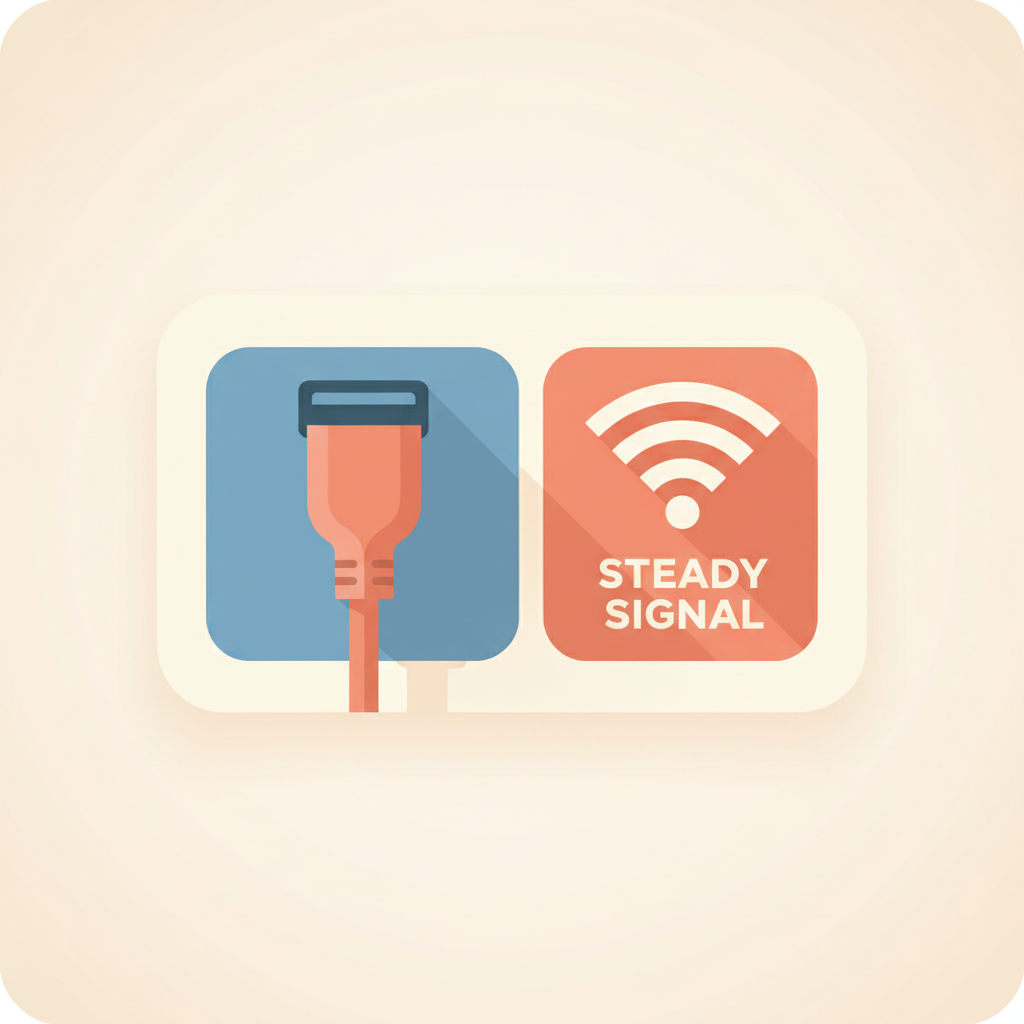
If your printer connects with a cable, make sure both ends are pushed in firmly. If it uses Wi-Fi, check that the Wi-Fi light on the printer is steady — not blinking.
Restart the printer
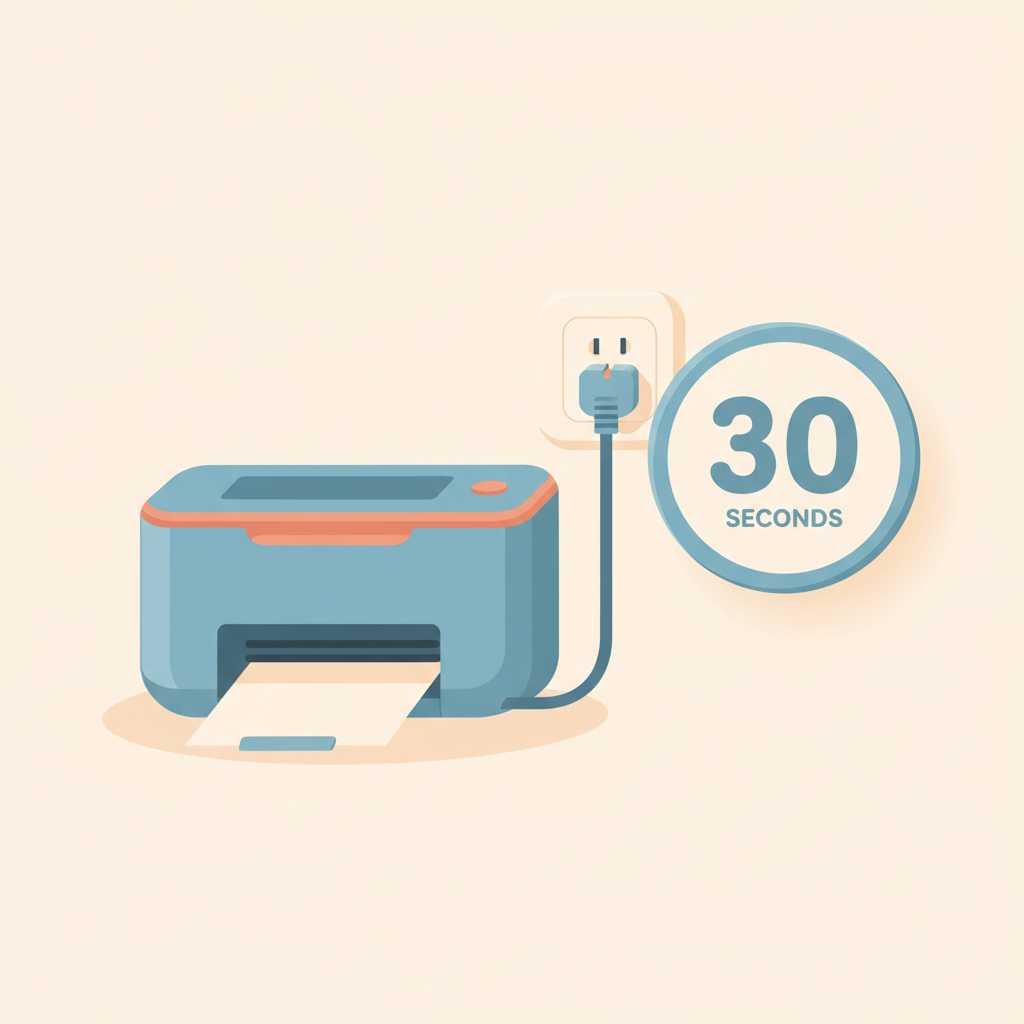
Turn the printer off, unplug the power cord, wait thirty seconds, plug it back in, and turn it back on. Wait one minute for it to fully wake up.
💡 This solves 'offline' messages most of the time.
Set the printer as your default
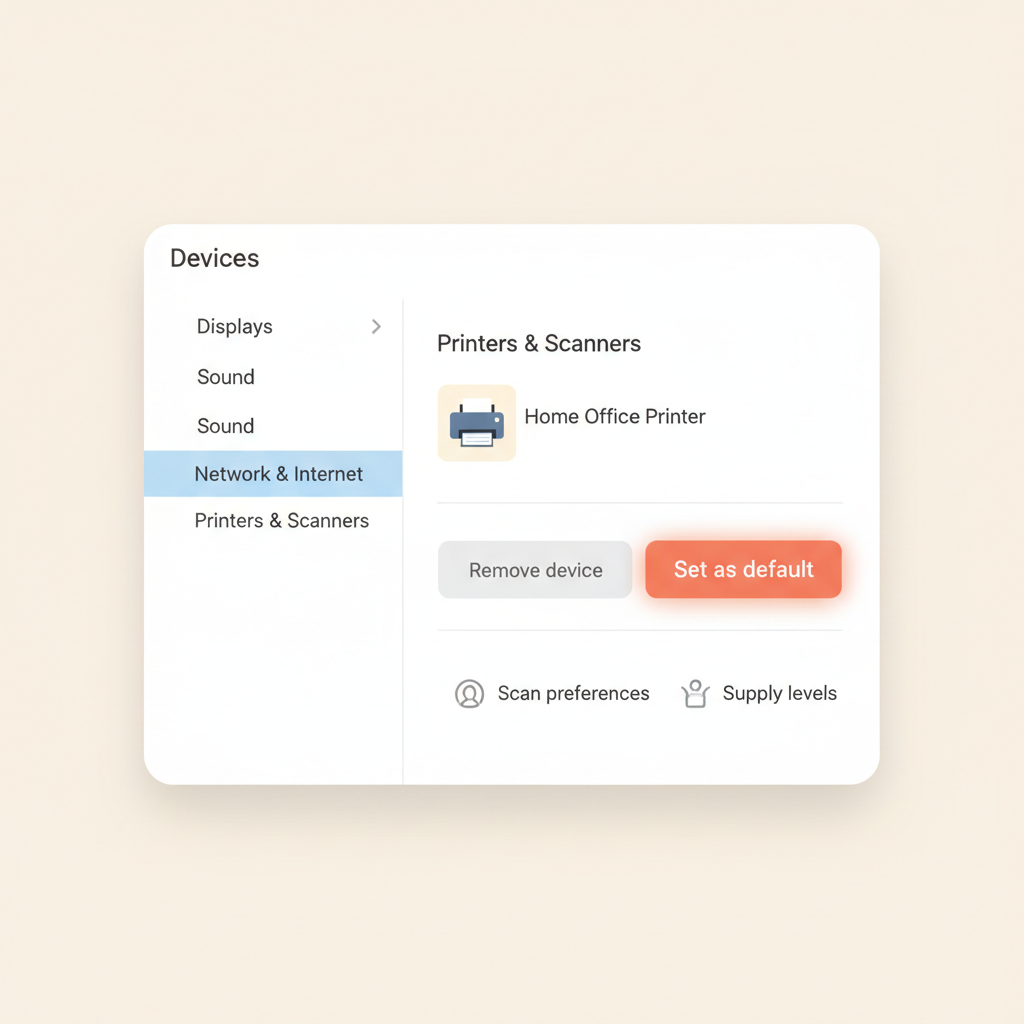
On Windows, open Settings → Bluetooth & devices → Printers & scanners. On a Mac, open System Settings → Printers & Scanners. Click your printer and choose 'Set as default'.
Try printing a test page
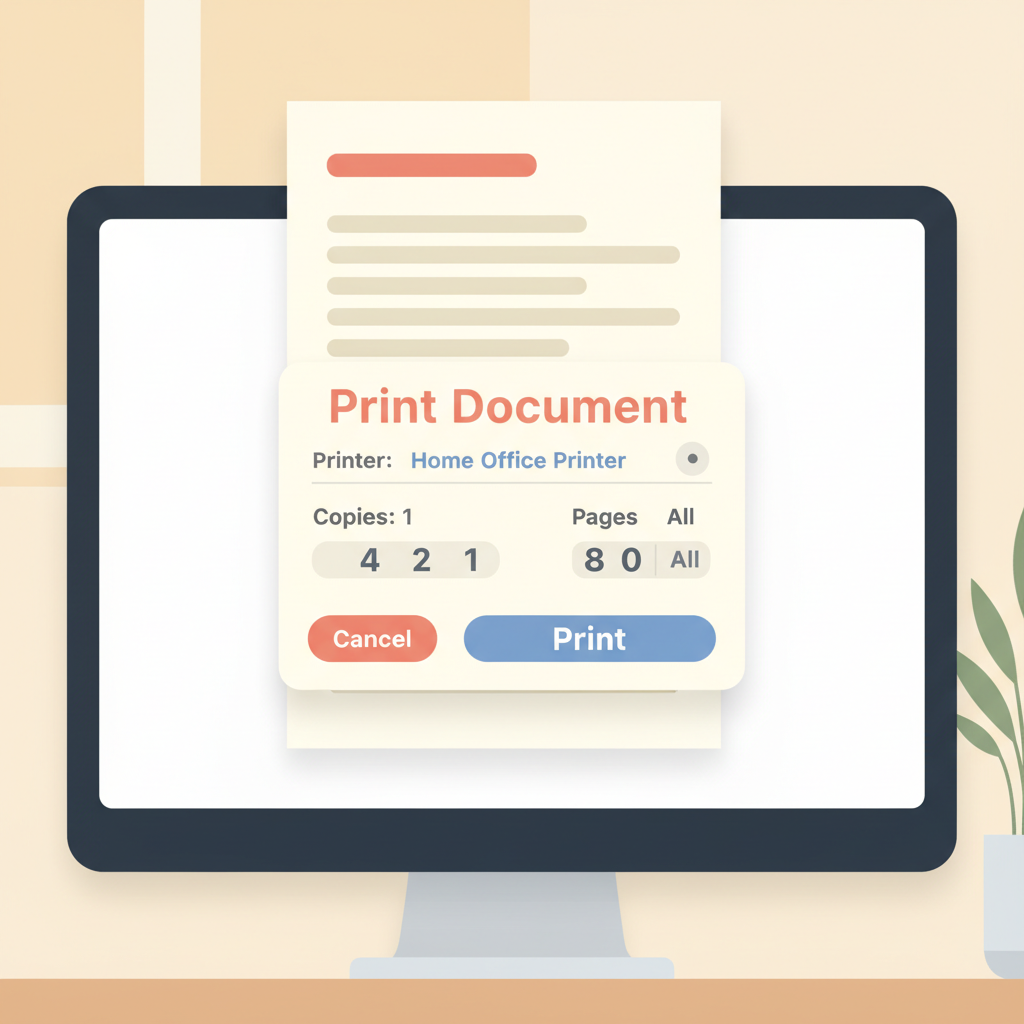
Open any document and press Control + P (Command + P on Mac). In the box that appears, click 'Print'. If a page comes out, you've fixed it!

Stuck on a step?
Take a picture of your screen and I will tell you exactly what to click.
New to screenshots? On Windows press the "PrtScn" key. On a Mac press Shift + Command + 4.