
Guide
How to get photos from your phone to your computer
Two easy ways: with a cable, or by emailing them to yourself. Pick whichever feels easier.
Which device are you using?
Steps look different on each one. Tap yours and we'll tailor every step for you.
Easiest way: email them to yourself
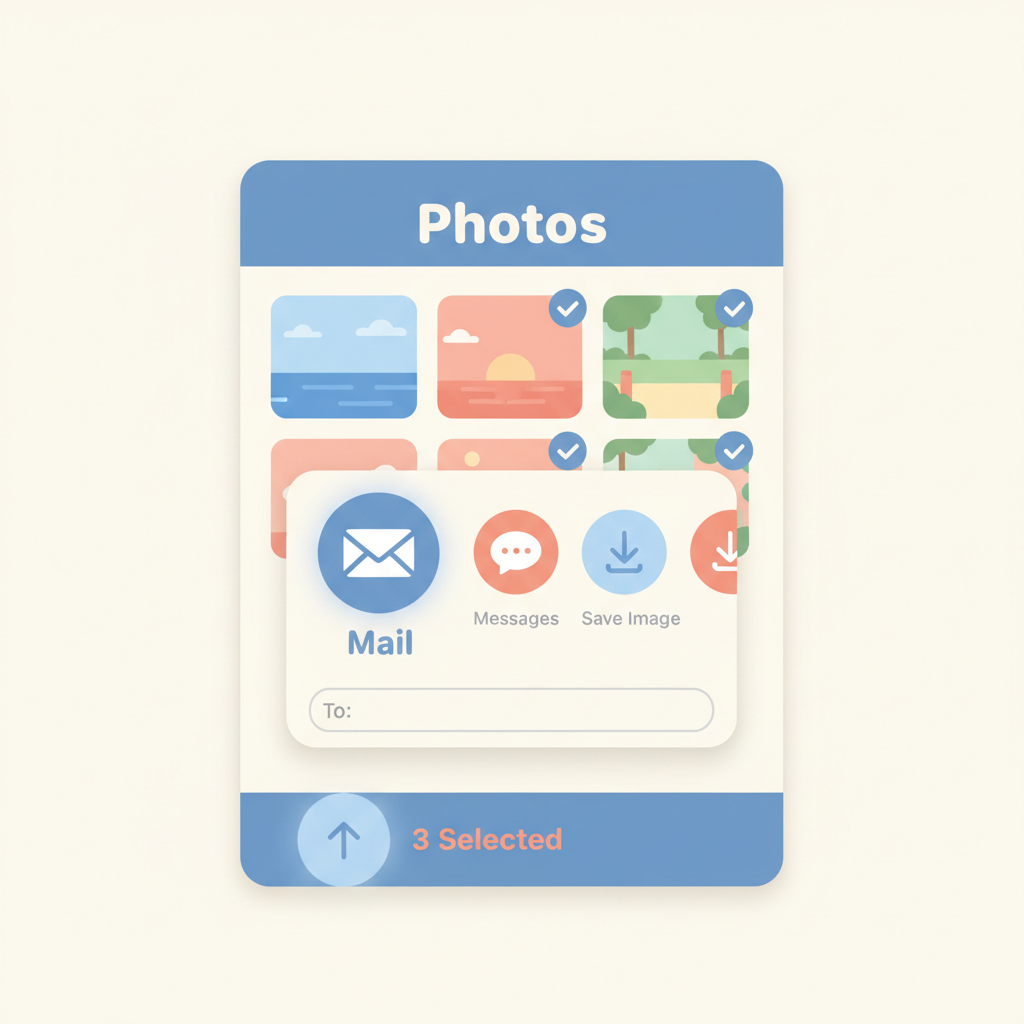
Open Photos on your phone, tap 'Select', tap the photos you want, then tap the Share button (square with an arrow). Choose 'Mail' and send the email to your own address.
💡 Start with five photos or fewer at a time so the email isn't too big.
On your computer, open the email
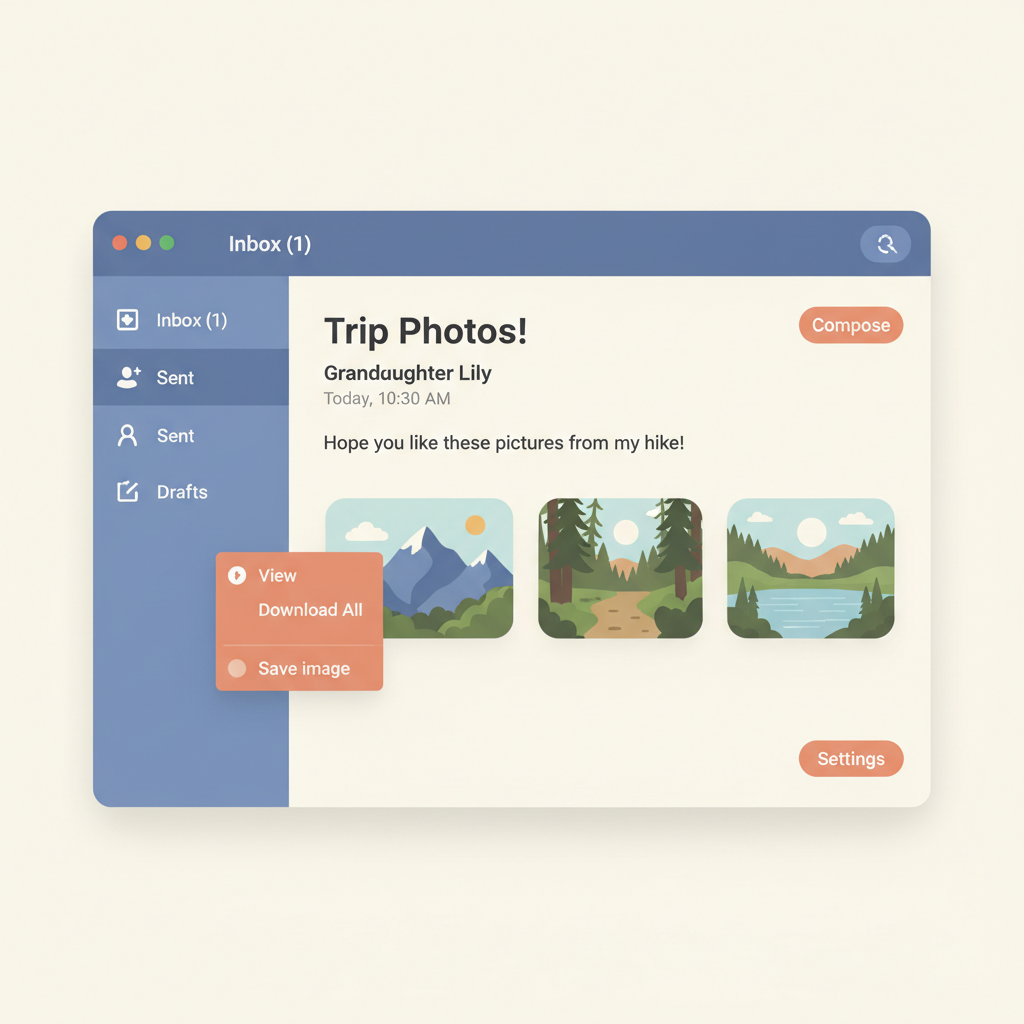
Open your email and find the message you just sent yourself. Right-click each photo attached and choose 'Save image' or 'Download'. They will land in your Downloads folder.
Or use the cable that charges your phone

Plug the small end into your phone and the USB end into your computer. On your phone, tap 'Allow' or 'Trust This Computer' if asked.
On a Mac: open the Photos app
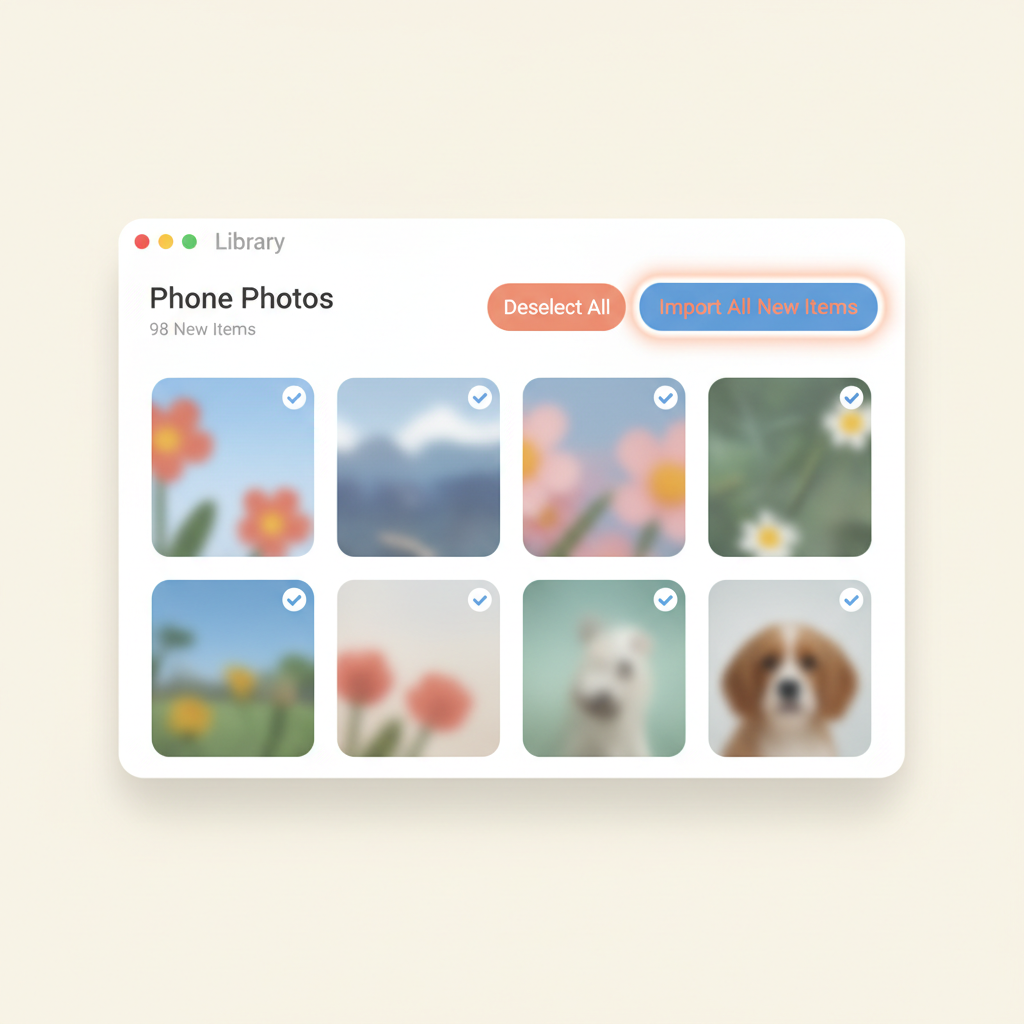
The Photos app on your Mac will open by itself and show your phone's pictures. Click 'Import All New Items' in the top-right corner. Wait for the green checkmark.
On Windows: open the Photos app
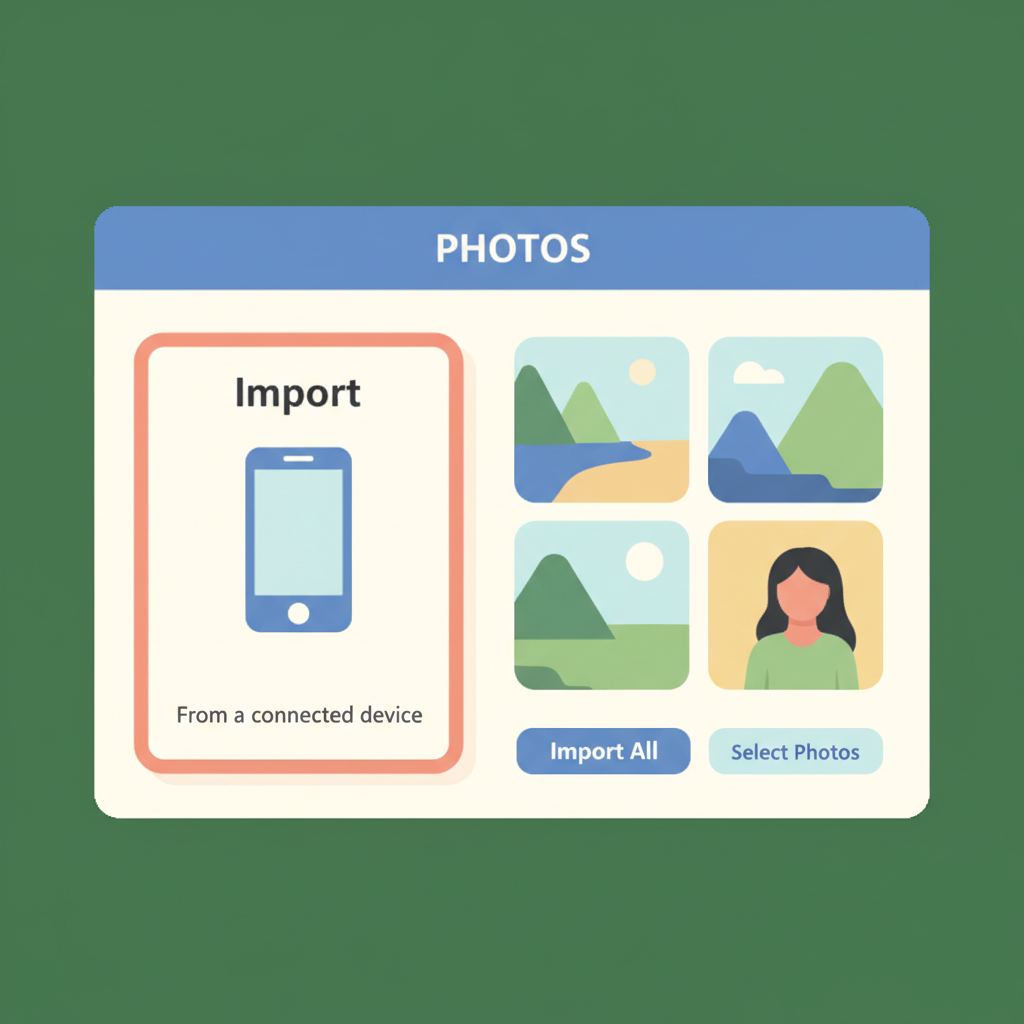
Click the Start button and search for 'Photos'. Open it, click 'Import' in the top-right, choose 'From a connected device', and pick your phone.
Your photos are saved!

They will be in your Pictures folder. Open File Explorer (Windows) or Finder (Mac), click 'Pictures', and you'll see them all.

Stuck on a step?
Take a picture of your screen and I will tell you exactly what to click.
New to screenshots? On Windows press the "PrtScn" key. On a Mac press Shift + Command + 4.