
Guide
How to make the text bigger on your screen
You can make everything bigger system-wide, or just zoom in on one webpage. Both are easy.
Which device are you using?
Steps look different on each one. Tap yours and we'll tailor every step for you.
On a webpage: hold Control and press +
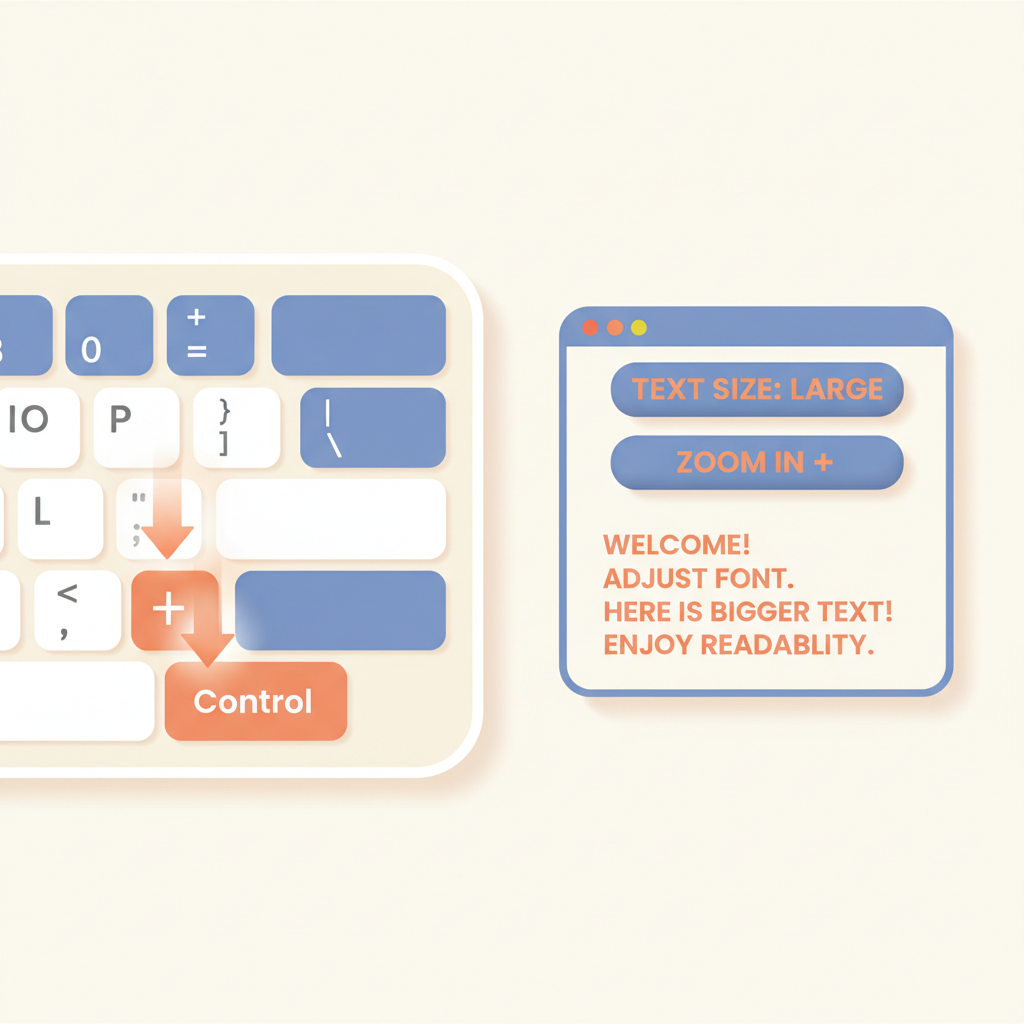
If a website's text is too small, hold the Control key (Command on Mac) and press the + (plus) key. Press it again to make the text even bigger.
💡 Hold Control and press the minus key to go back smaller. Hold Control and press 0 (zero) to return to normal.
On Windows: open the Settings app
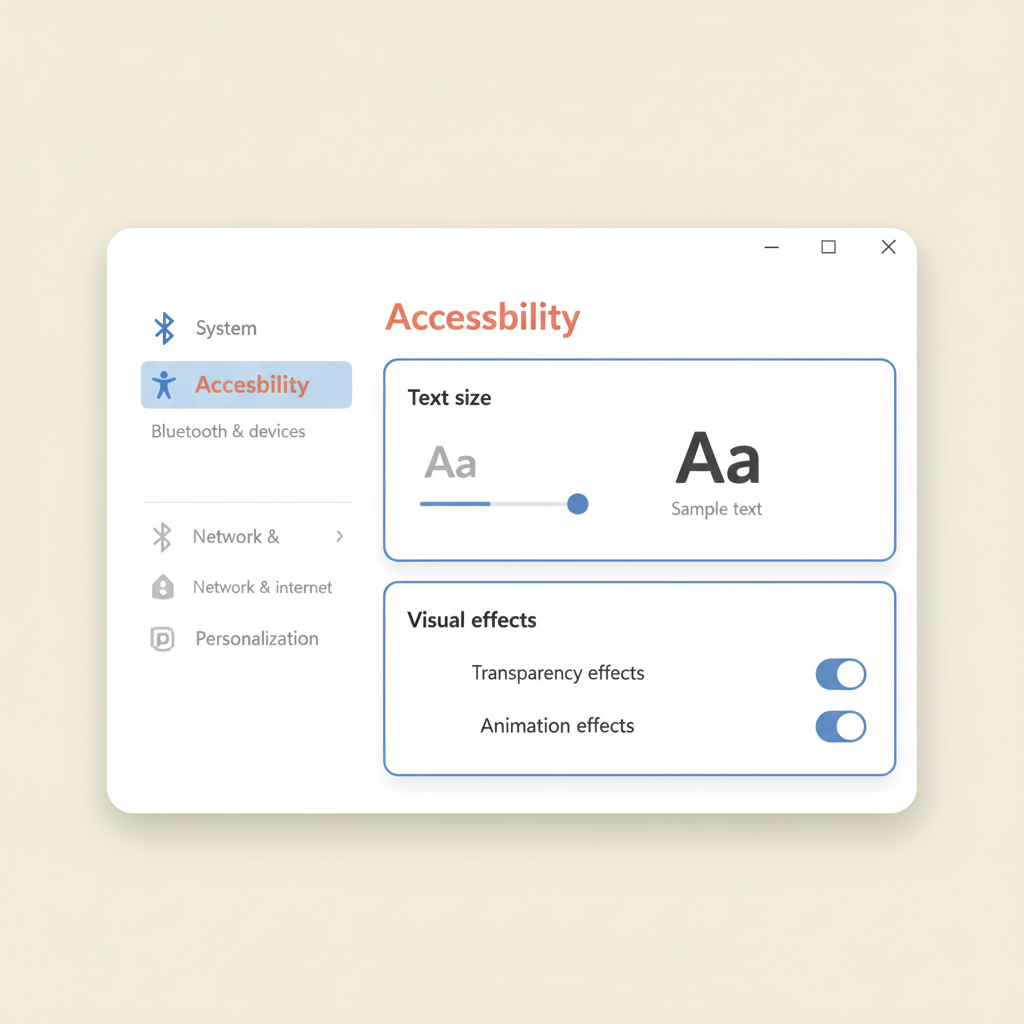
Click the Start button (bottom-left) and click the gear icon for Settings. Click 'Accessibility' (or 'Ease of Access' on older Windows).
Windows: click 'Text size' and drag the slider
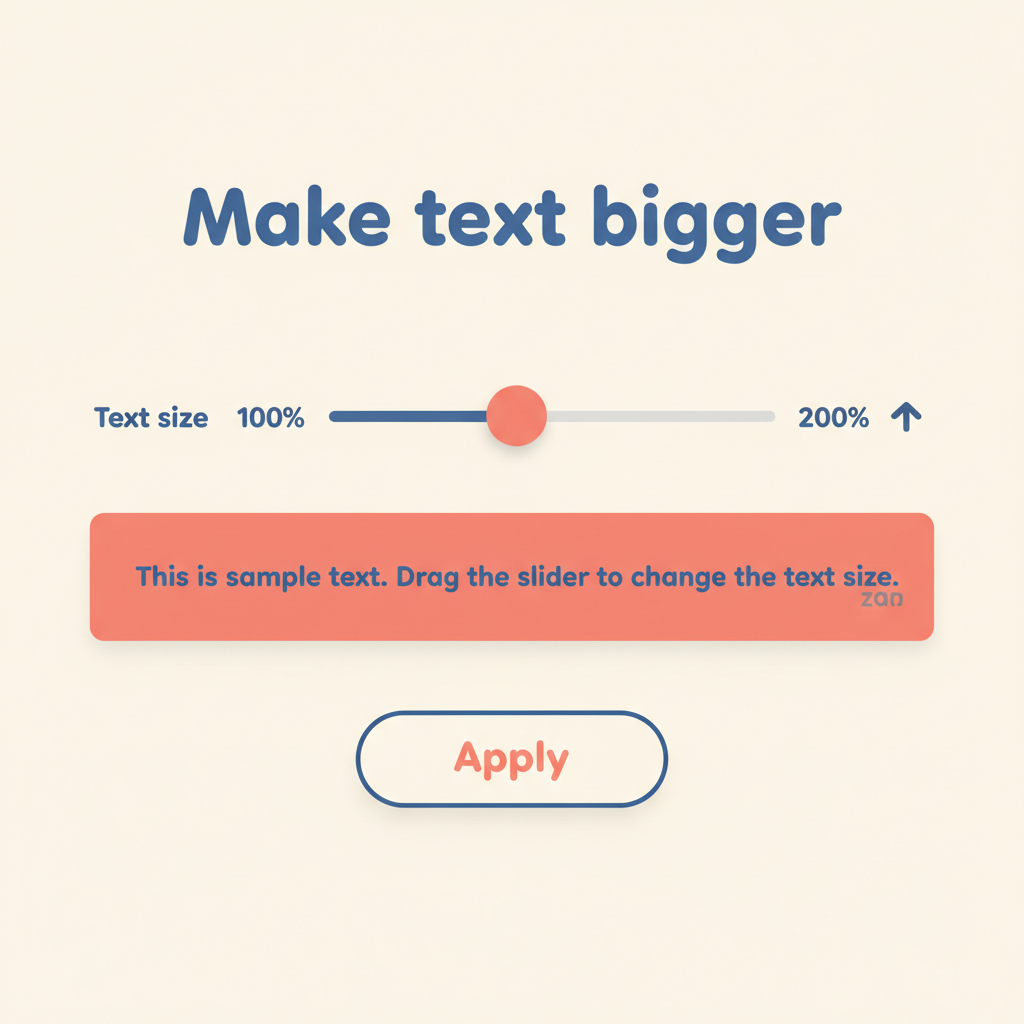
A slider shows a sample line of text. Drag the dot to the right and the sample gets bigger. When you like the size, click 'Apply'. Everything on your computer becomes easier to read.
On a Mac: open System Settings
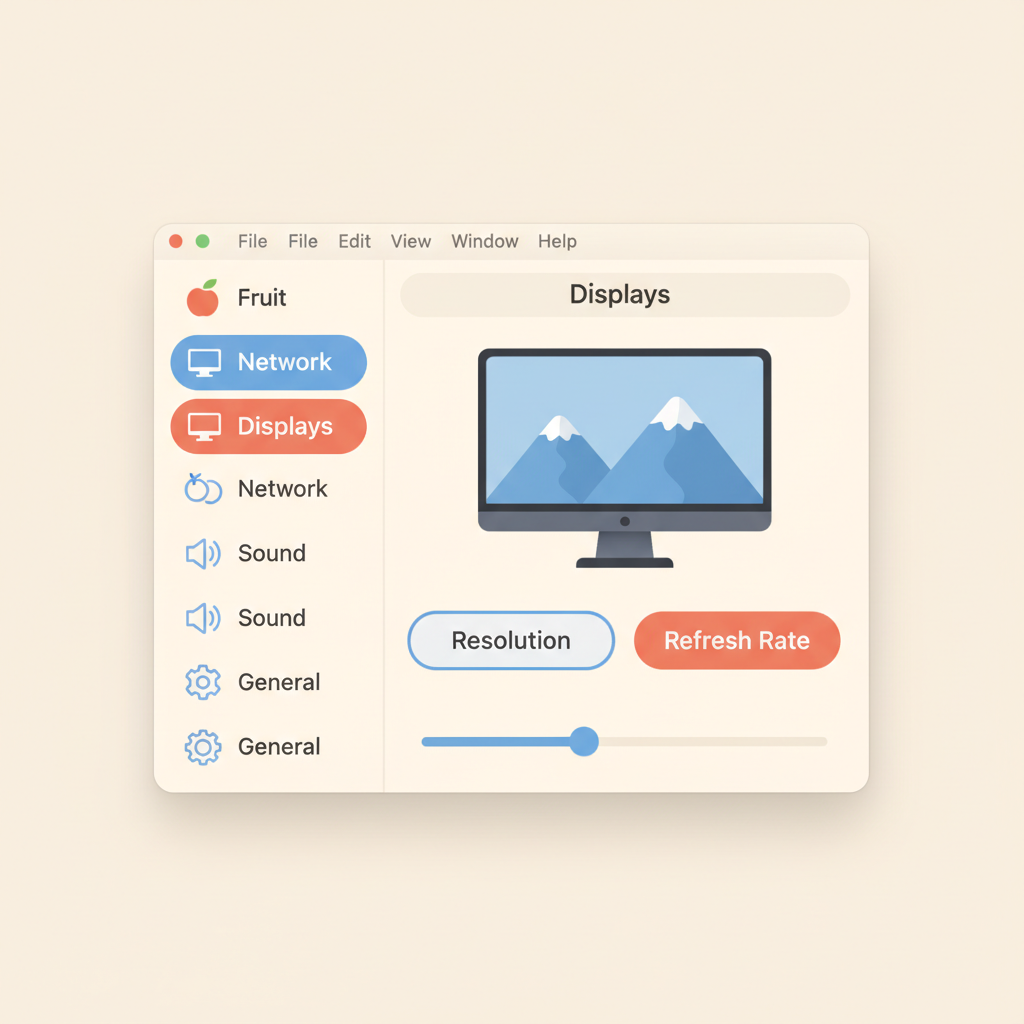
Click the Apple menu (top-left) and choose 'System Settings'. Click 'Displays' on the side.
Mac: choose 'Larger Text'
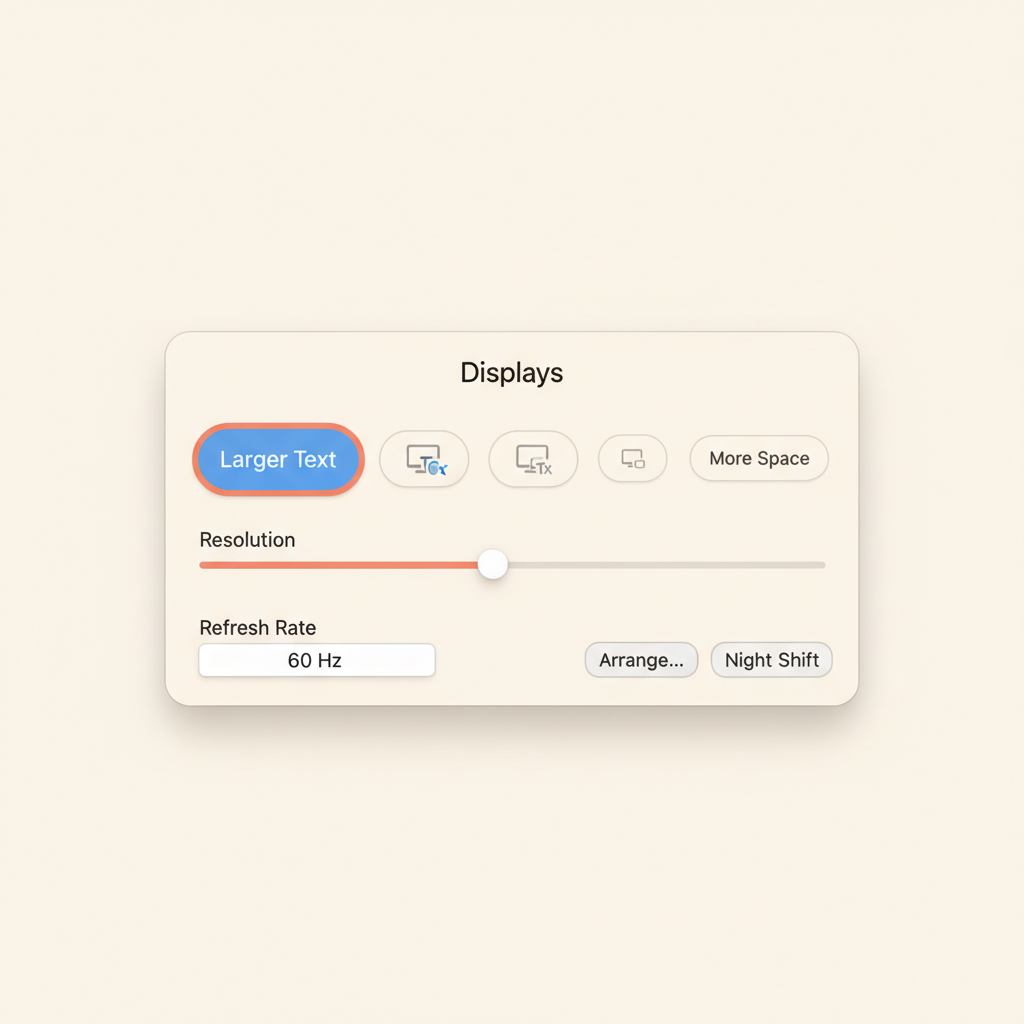
Under 'Resolution', click one of the bigger options on the right side. Everything on your screen — menus, buttons, text — will instantly grow.
On a phone or tablet: use Display settings
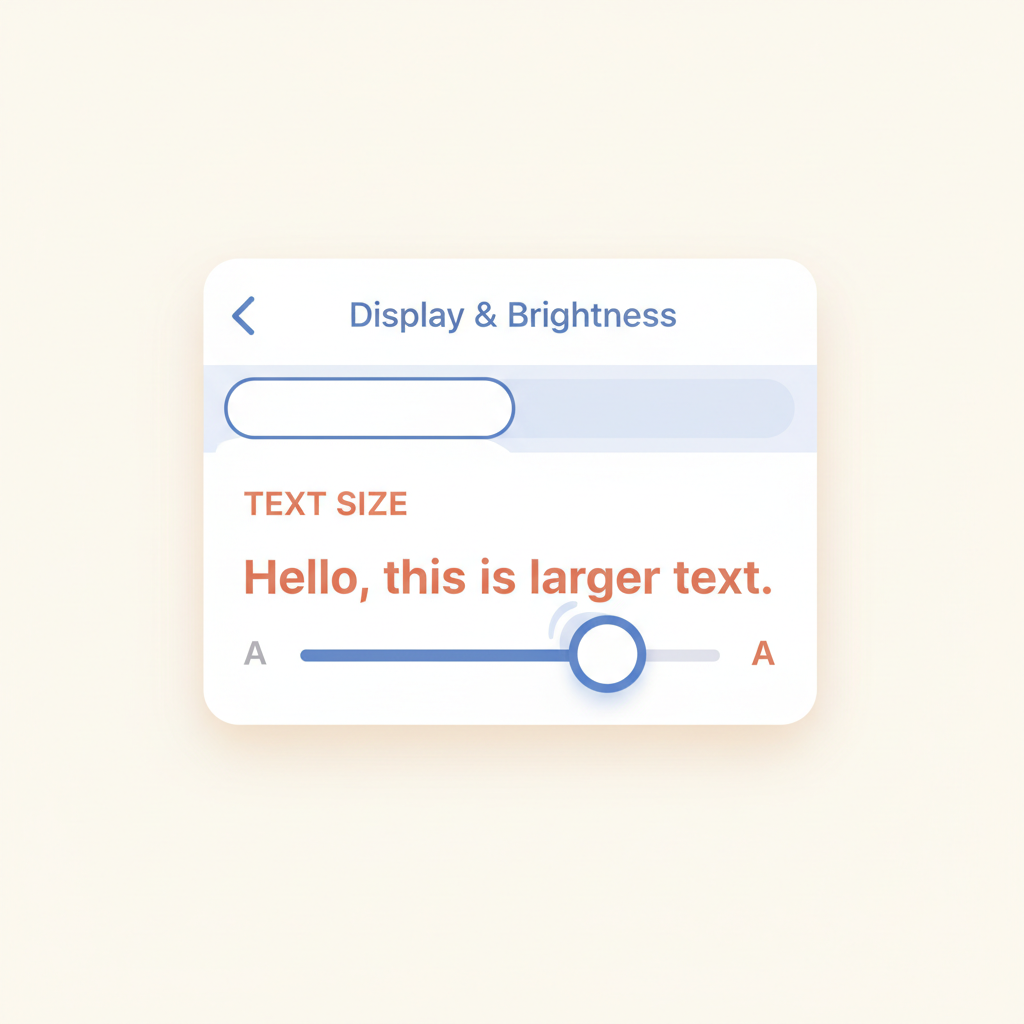
Open Settings → 'Display & Brightness' → 'Text Size' (iPhone) or Settings → 'Display' → 'Font size' (Android). Drag the slider until reading is comfortable.

Stuck on a step?
Take a picture of your screen and I will tell you exactly what to click.
New to screenshots? On Windows press the "PrtScn" key. On a Mac press Shift + Command + 4.