
Guide
How to make and join a video call (Zoom, FaceTime, Google Meet)
Whether someone invited you or you want to call your grandkids, the steps are similar across every app.
Which device are you using?
Steps look different on each one. Tap yours and we'll tailor every step for you.
Decide which app you'll use

iPhone or Mac users often use FaceTime. Anyone on any device can use Zoom or Google Meet. If a family member sent you a link, use whichever app the link opens.
If you were invited: click the link

Find the email or text with the meeting link. It is blue and underlined and usually says something like 'Join Zoom Meeting'. Click it just once.
💡 If your browser asks 'Open Zoom?' or 'Open Meet?', click 'Open' or 'Allow'.
If you're starting the call: open the app

For FaceTime, open the green camera icon and tap 'New FaceTime'. For Zoom, open the app and click 'New Meeting'. For Meet, go to meet.google.com and click 'New meeting'.
Allow your camera and microphone
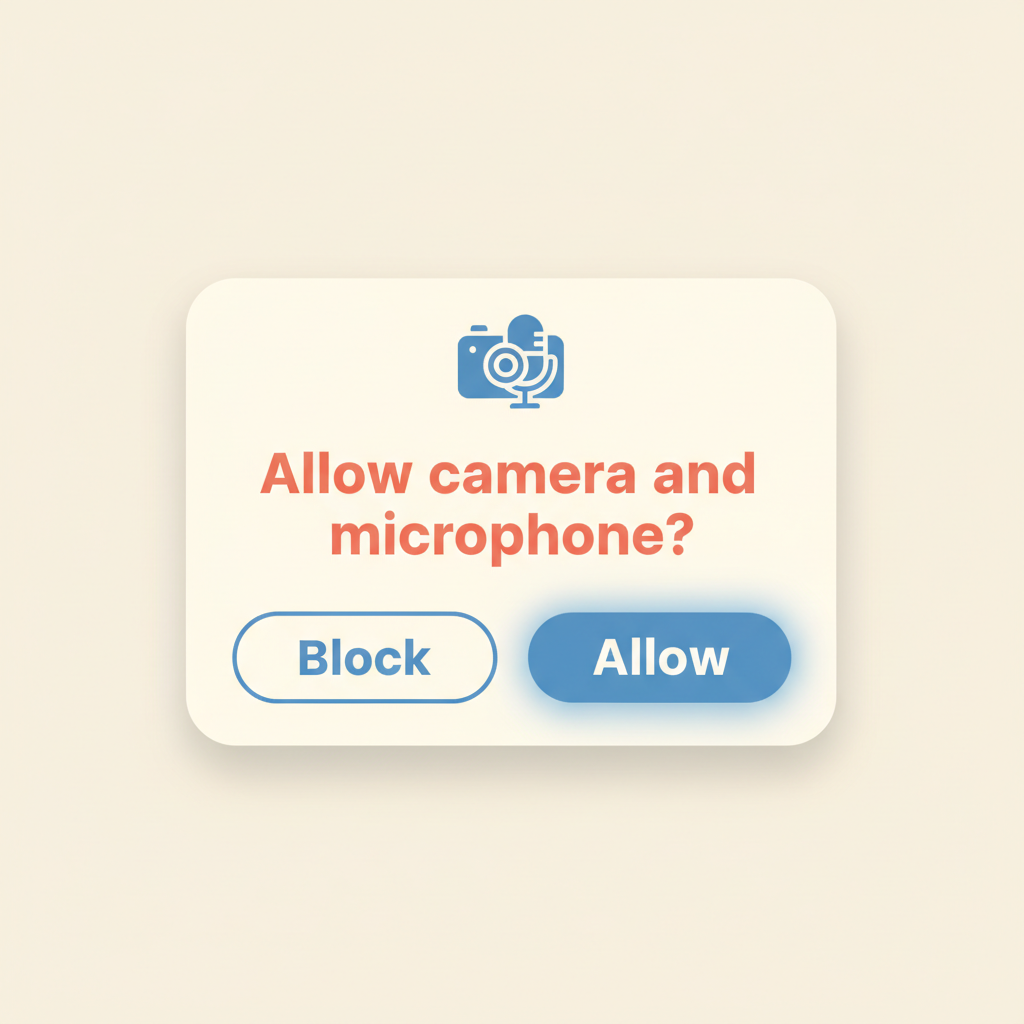
A small box will pop up asking permission to use your camera and microphone. Click 'Allow' on both. This is how the other person will see and hear you.
Check your camera and microphone are on

Look at the bottom of the window. You'll see a camera icon and a microphone icon. If either has a red line through it, click it once to turn it on.
💡 A red line means OFF. No red line means ON.
Invite people or click Join

If you started the meeting, click 'Copy Invite' and paste it into a text or email. If you joined a meeting, click the big 'Join with Video' button. Wave hello!
When you're done, click 'Leave' or 'End'
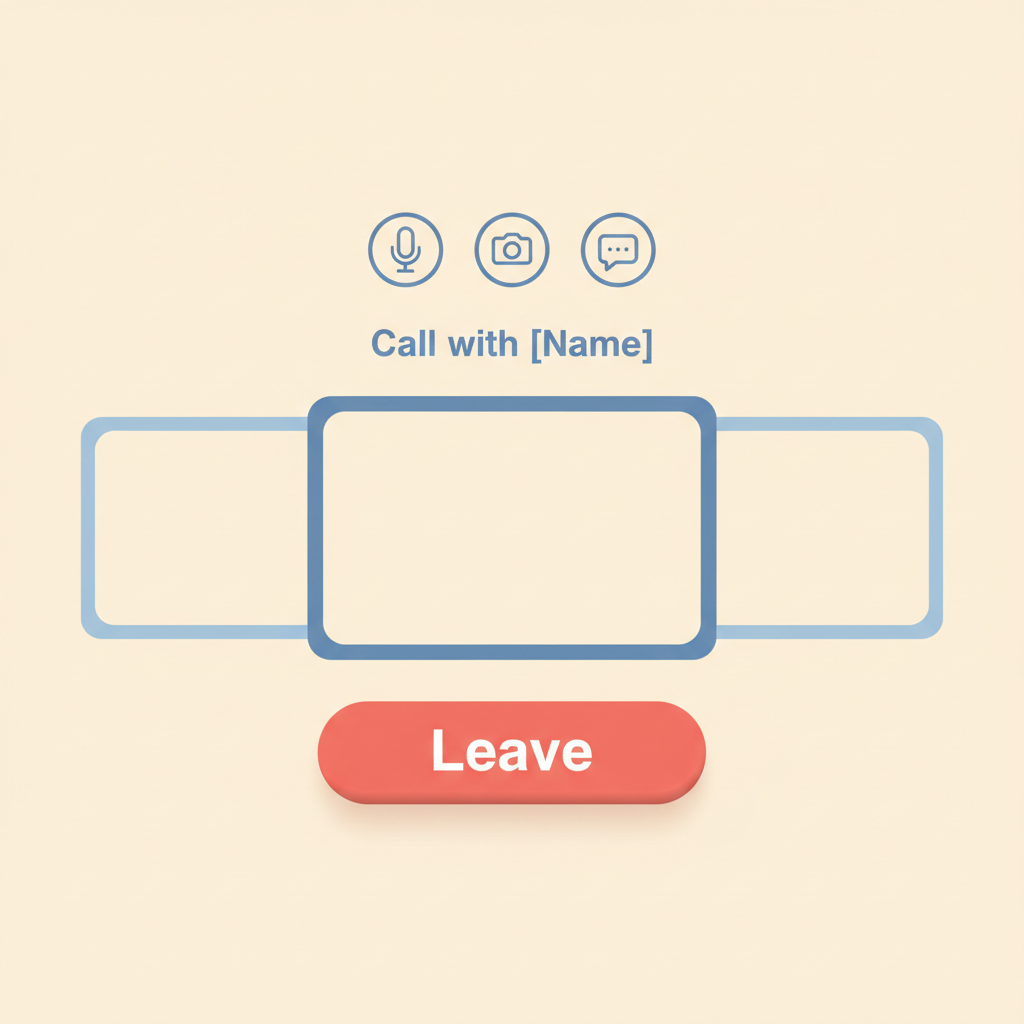
Look for the red button at the bottom of the screen. Click it once to hang up. The video window will close.

Stuck on a step?
Take a picture of your screen and I will tell you exactly what to click.
New to screenshots? On Windows press the "PrtScn" key. On a Mac press Shift + Command + 4.