
Guide
I forgot my Wi-Fi password — how do I find it?
Your password is almost always written down somewhere. Let's check the most common spots.
Which device are you using?
Steps look different on each one. Tap yours and we'll tailor every step for you.
Look on the back or bottom of your router
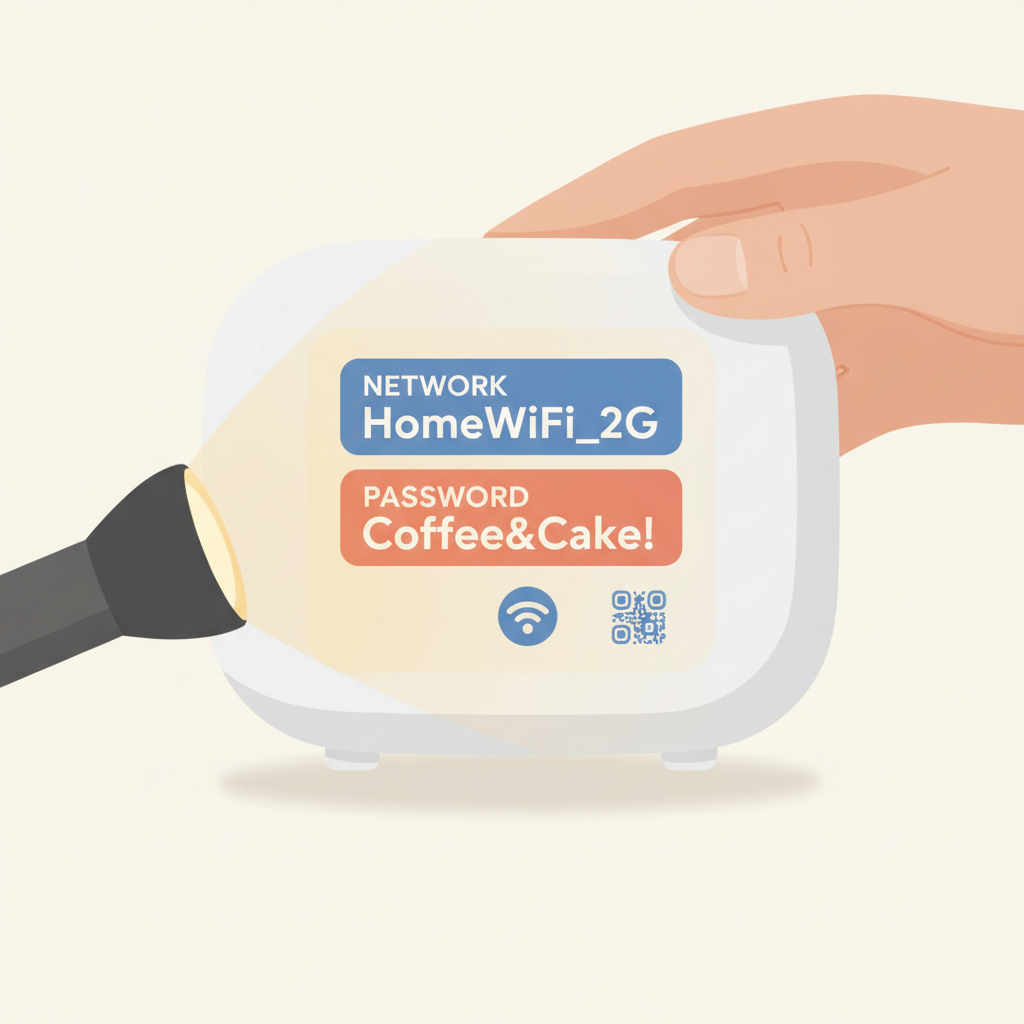
The router is the small box that makes your Wi-Fi. Tip it over and look for a sticker. You'll often see two lines: 'Network Name' (or SSID) and 'Password' (or Key).
💡 Use a flashlight — the writing is often very small.
Check the paperwork from your internet company
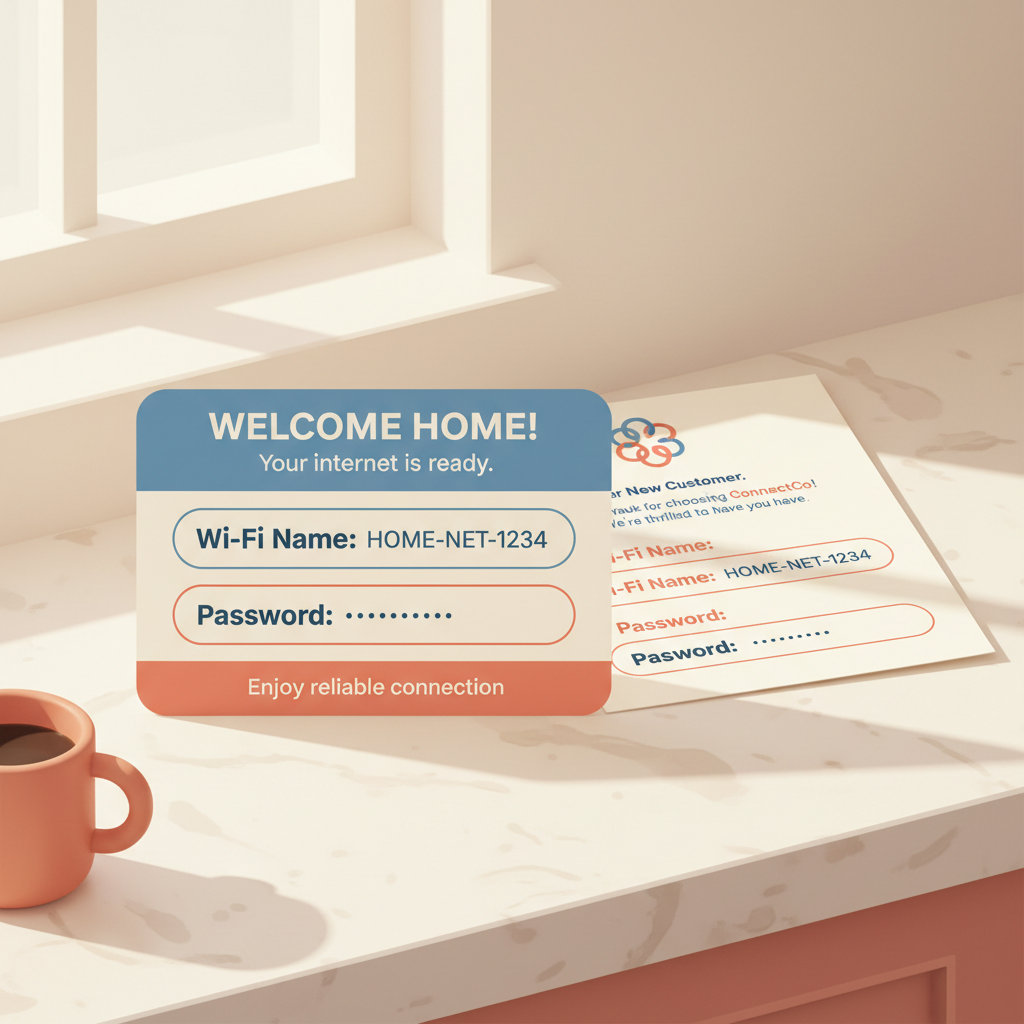
When the internet was first set up, you were given a small card or letter with your Wi-Fi name and password. It's often kept in a kitchen drawer or with bills.
Ask a device that is already connected
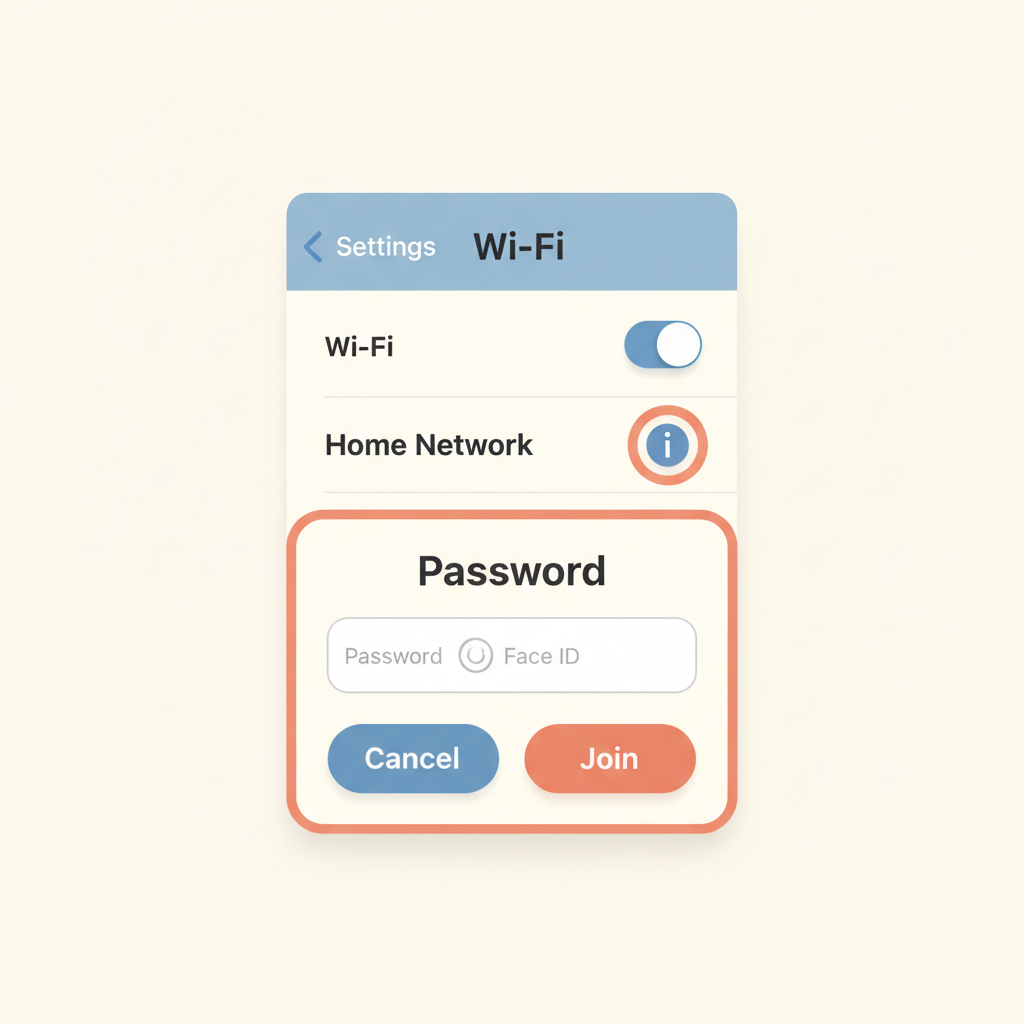
If your phone is already on the Wi-Fi, it remembers the password. On an iPhone, open Settings → Wi-Fi, tap the (i) next to your network, then tap 'Password' and use Face ID to reveal it.
On Android: tap the Share button
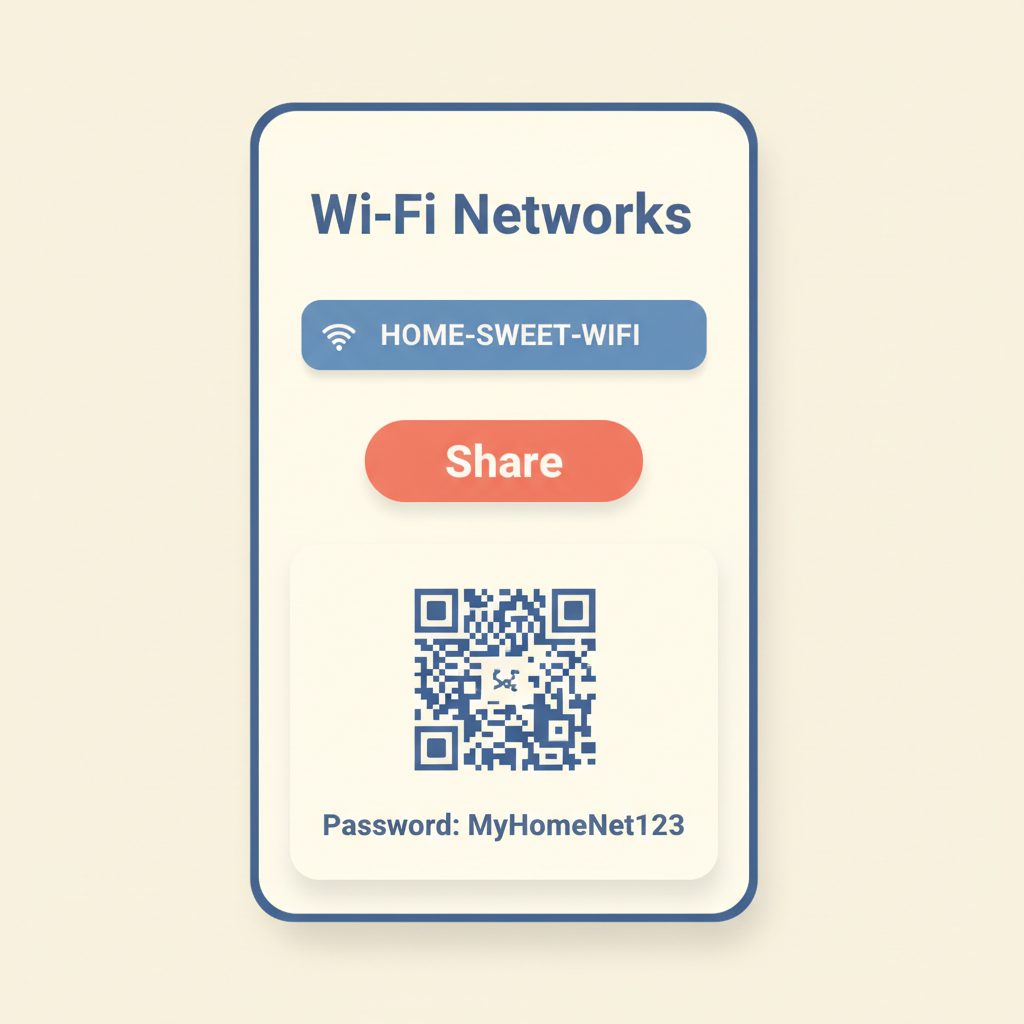
Open Settings → Wi-Fi → tap your network's name → tap 'Share'. A QR code appears that holds your password. The password also shows beneath it.
Still can't find it? Reset the router
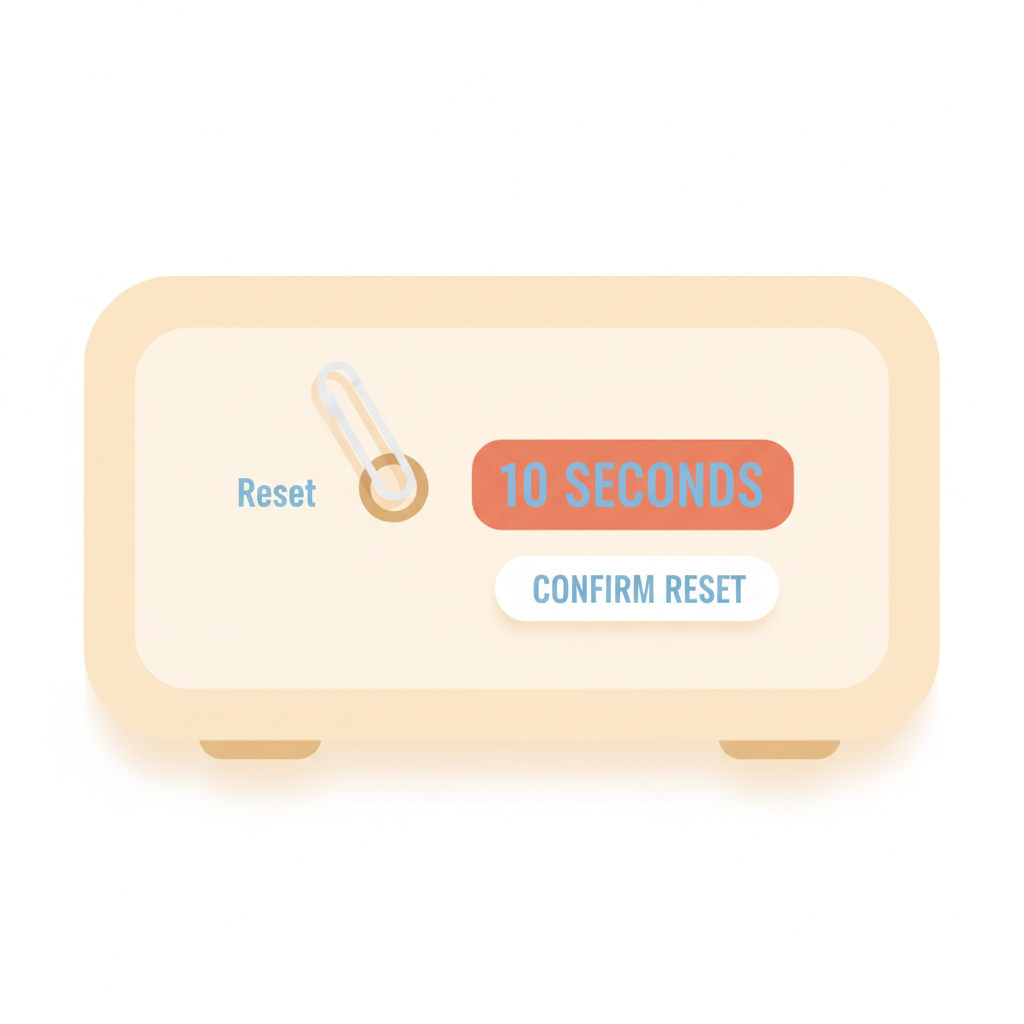
Find the small hole on the back of the router marked 'Reset'. Press the inside button with a paperclip and hold for ten seconds. The Wi-Fi name and password on the sticker will work again.
💡 This will disconnect all your other devices until you re-enter the password on each.
Write it down where you'll find it
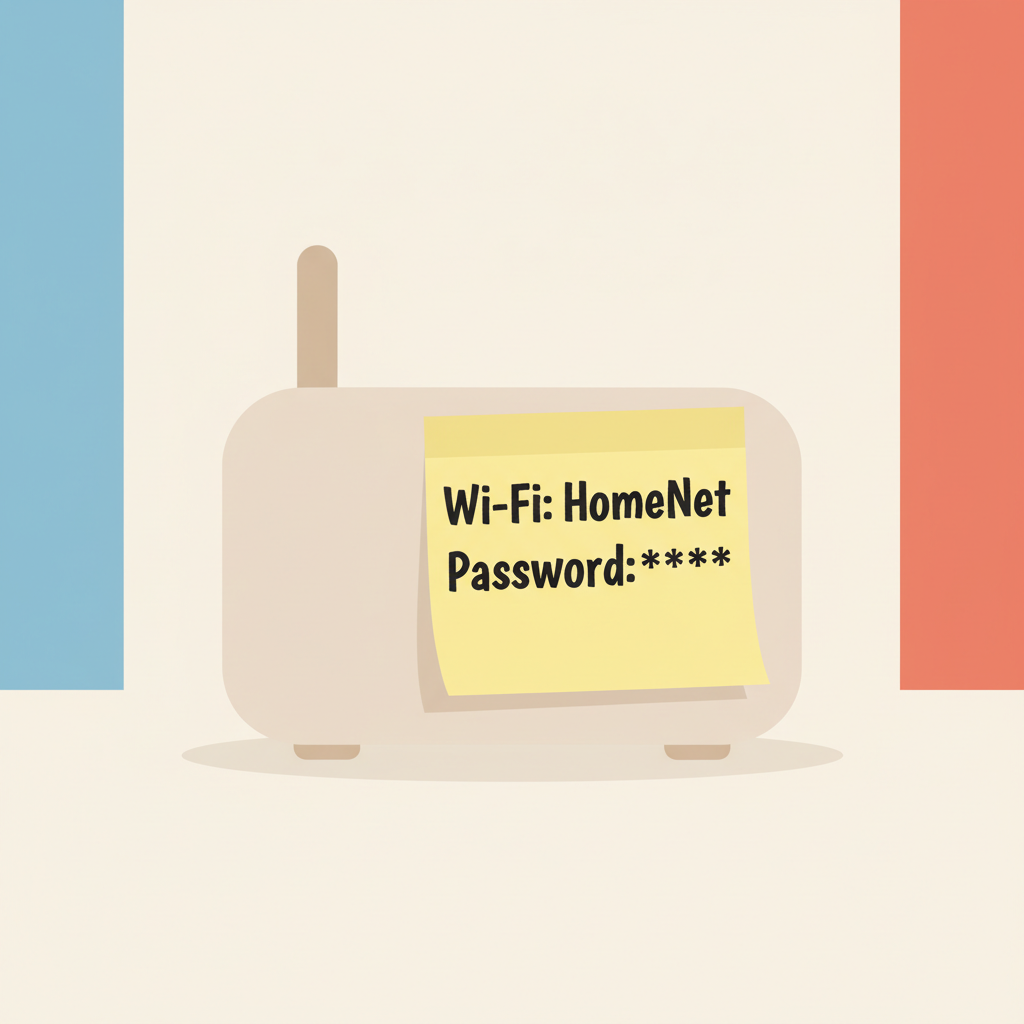
Once you have the password, write it on a sticky note and put it inside a kitchen drawer or on the back of the router itself. You'll be glad you did.

Stuck on a step?
Take a picture of your screen and I will tell you exactly what to click.
New to screenshots? On Windows press the "PrtScn" key. On a Mac press Shift + Command + 4.