
Guide
Wi-Fi won't connect or is very slow — let's fix it
We'll go through the simple fixes first. Most Wi-Fi trouble is solved in under five minutes.
Which device are you using?
Steps look different on each one. Tap yours and we'll tailor every step for you.
Check that Wi-Fi is turned on
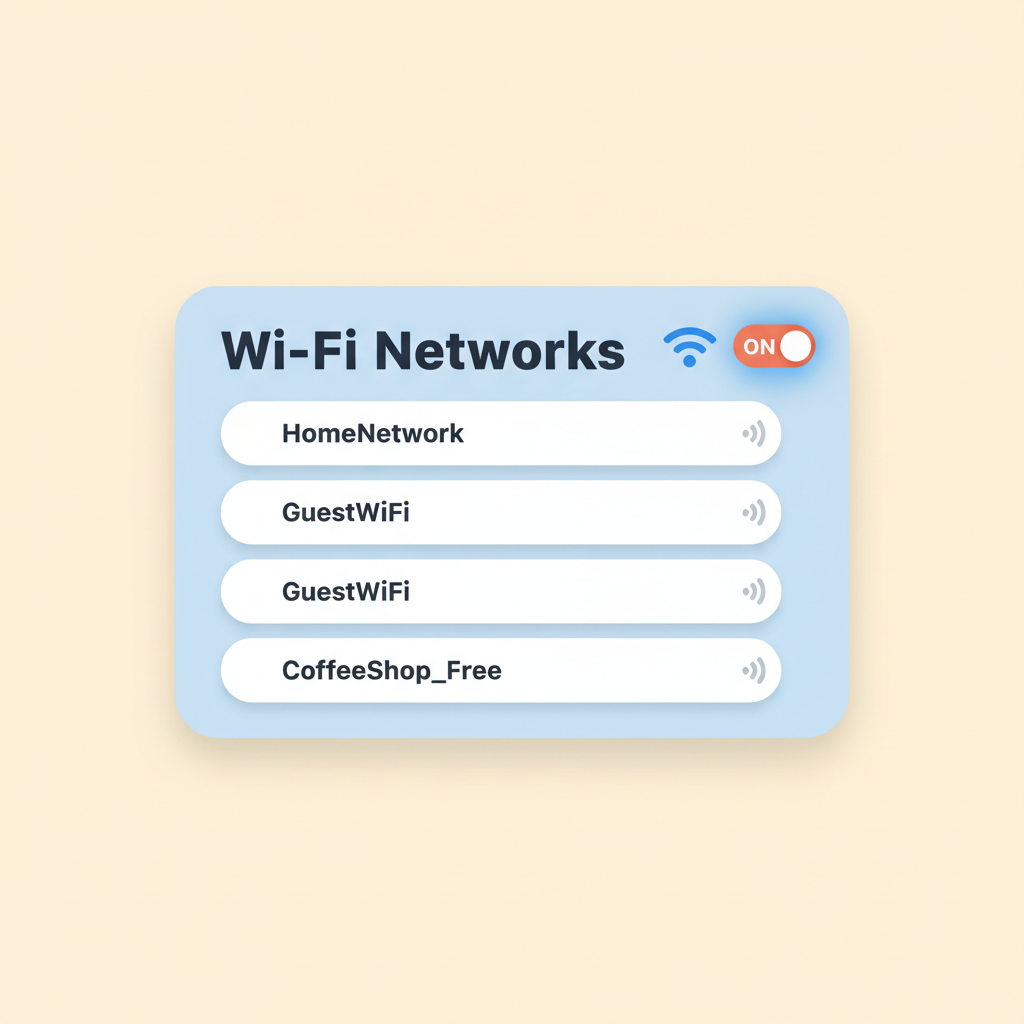
Look at the top of your screen (or the bottom-right on Windows) for the little fan-shaped Wi-Fi symbol. If it looks empty or has a slash through it, click it and turn Wi-Fi On.
💡 On a phone or tablet, swipe down from the top to see the Wi-Fi button. Tap it once to turn it on.
Make sure you are connected to your own network
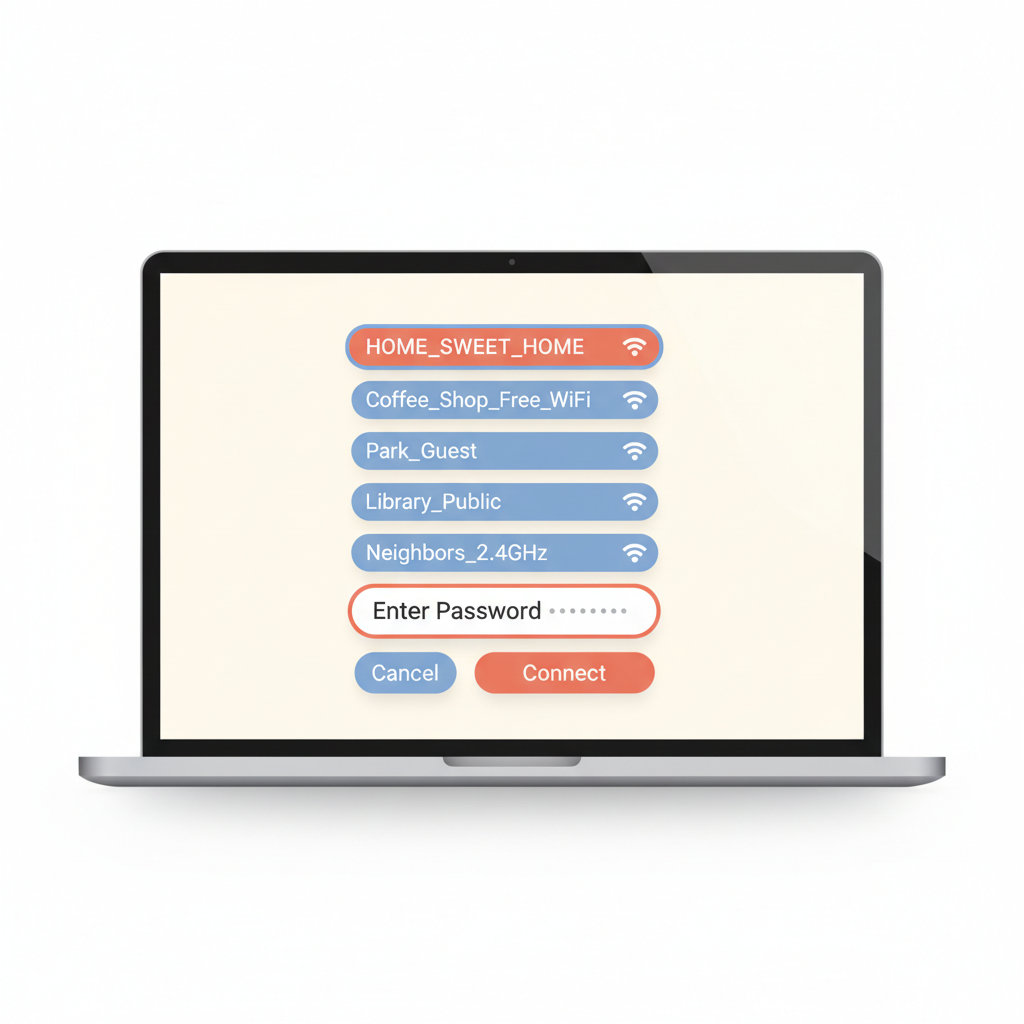
Click the Wi-Fi symbol. A list of names appears. Find your home network (the name your internet company gave you) and click it. If it asks for a password, type it carefully — letters are case-sensitive.
Move closer to the router

Your router is the small box with blinking lights that gives you internet. Walking into the same room usually makes the signal much stronger right away.
Restart the router
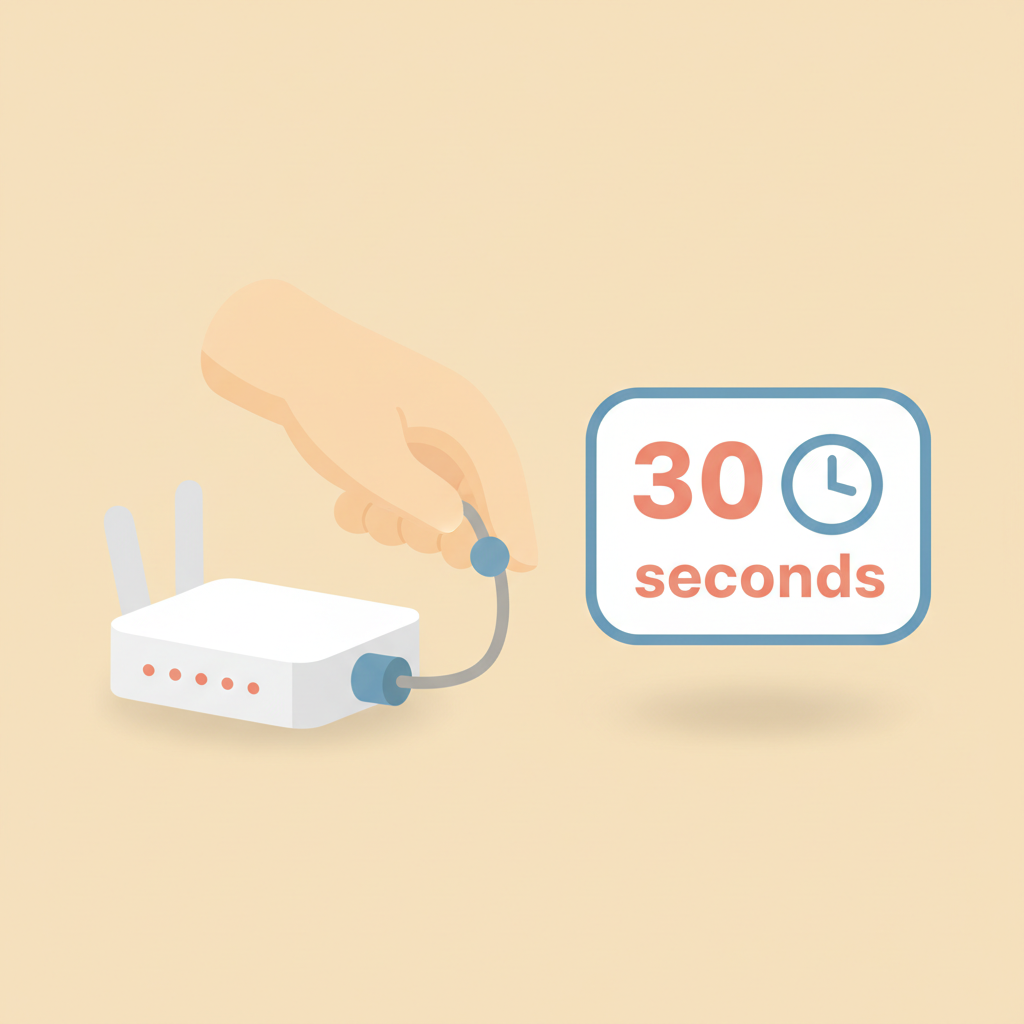
Unplug the power cable from the back of the router. Count slowly to thirty. Plug it back in. Wait two full minutes for all the lights to come back on steadily.
💡 This is the number-one fix. It works about three times out of four.
Restart your device too
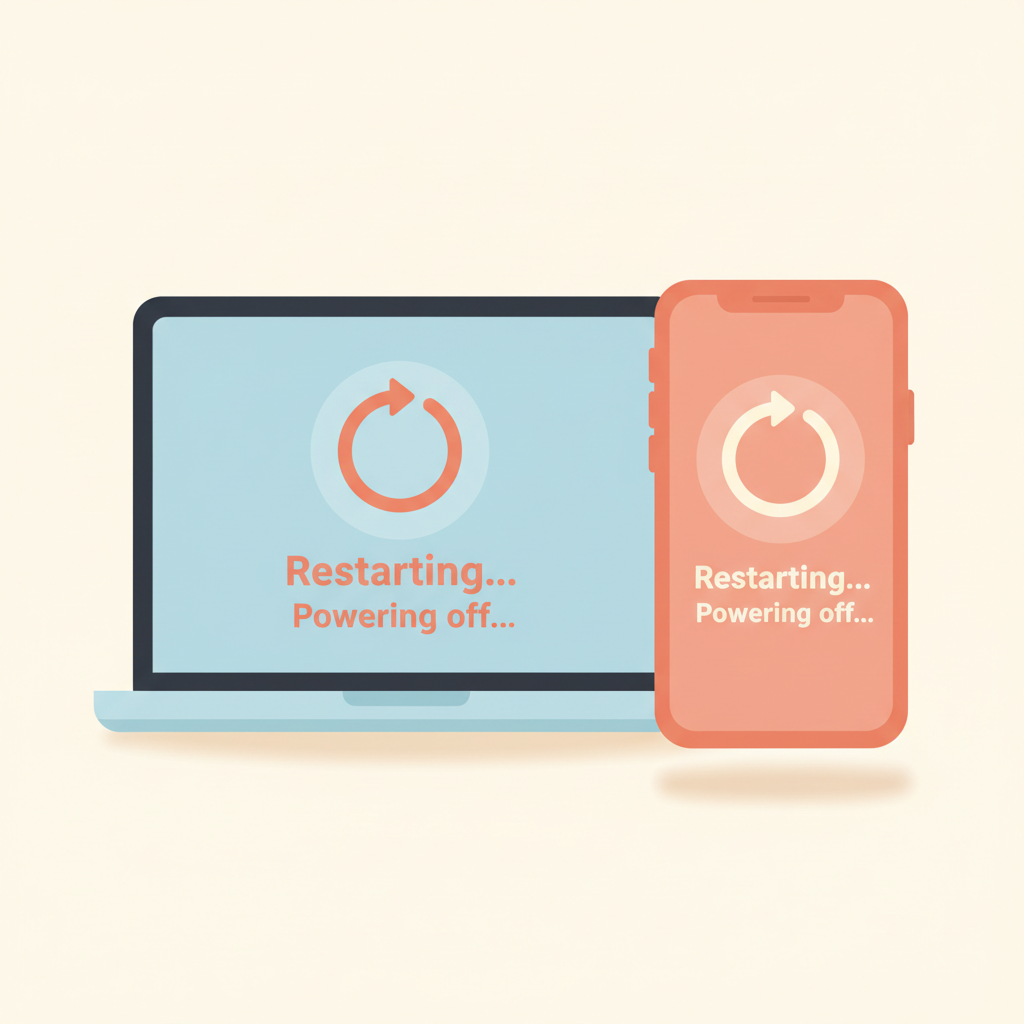
Turn your computer, phone, or tablet completely off. Wait ten seconds. Turn it back on. Then try opening a website to test.
Still not working? Call your internet company
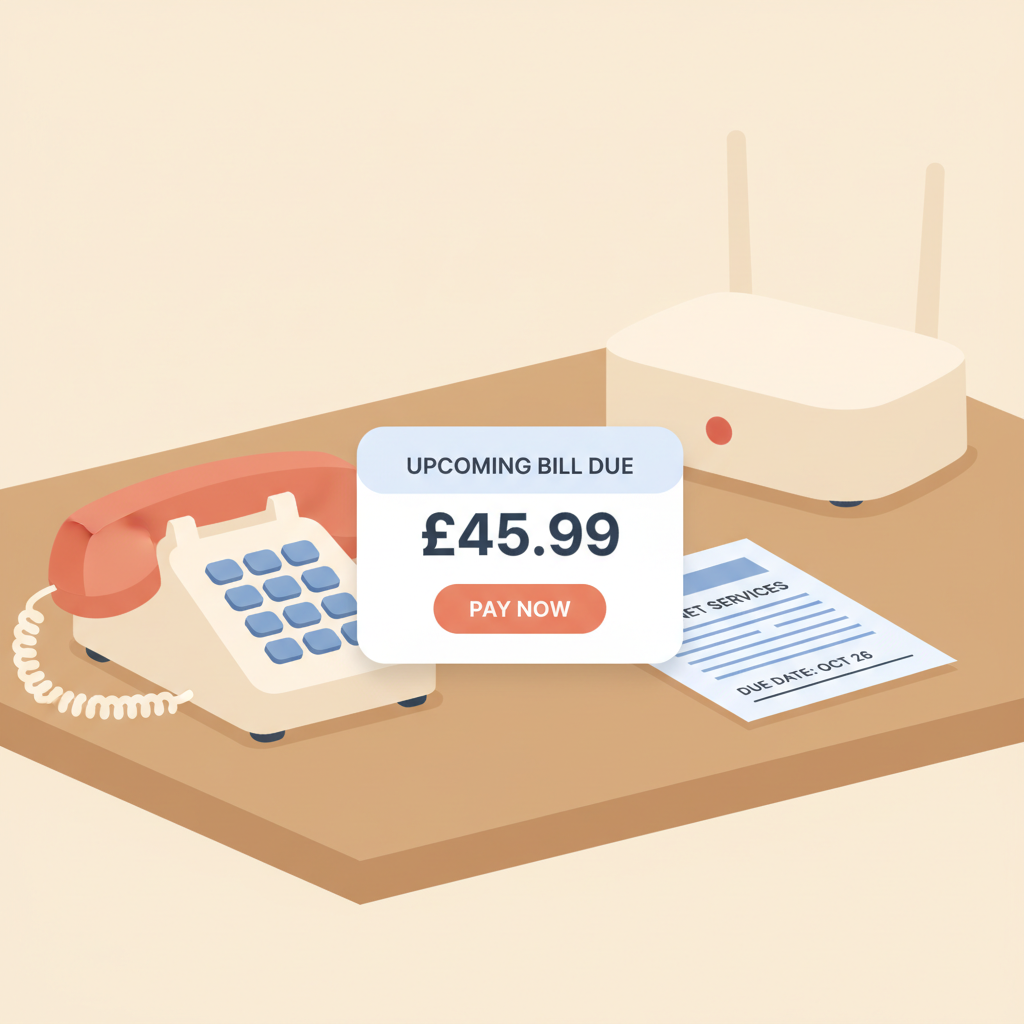
If the router's lights are red or flashing oddly after restarting, the problem is likely with the service itself. Call the number on your monthly bill — they can check from their end.

Stuck on a step?
Take a picture of your screen and I will tell you exactly what to click.
New to screenshots? On Windows press the "PrtScn" key. On a Mac press Shift + Command + 4.