
Guide
My computer is running very slow or keeps freezing
Computers slow down when too many things are open or running quietly in the background. Let's clean it up.
Which device are you using?
Steps look different on each one. Tap yours and we'll tailor every step for you.
Save your work and restart
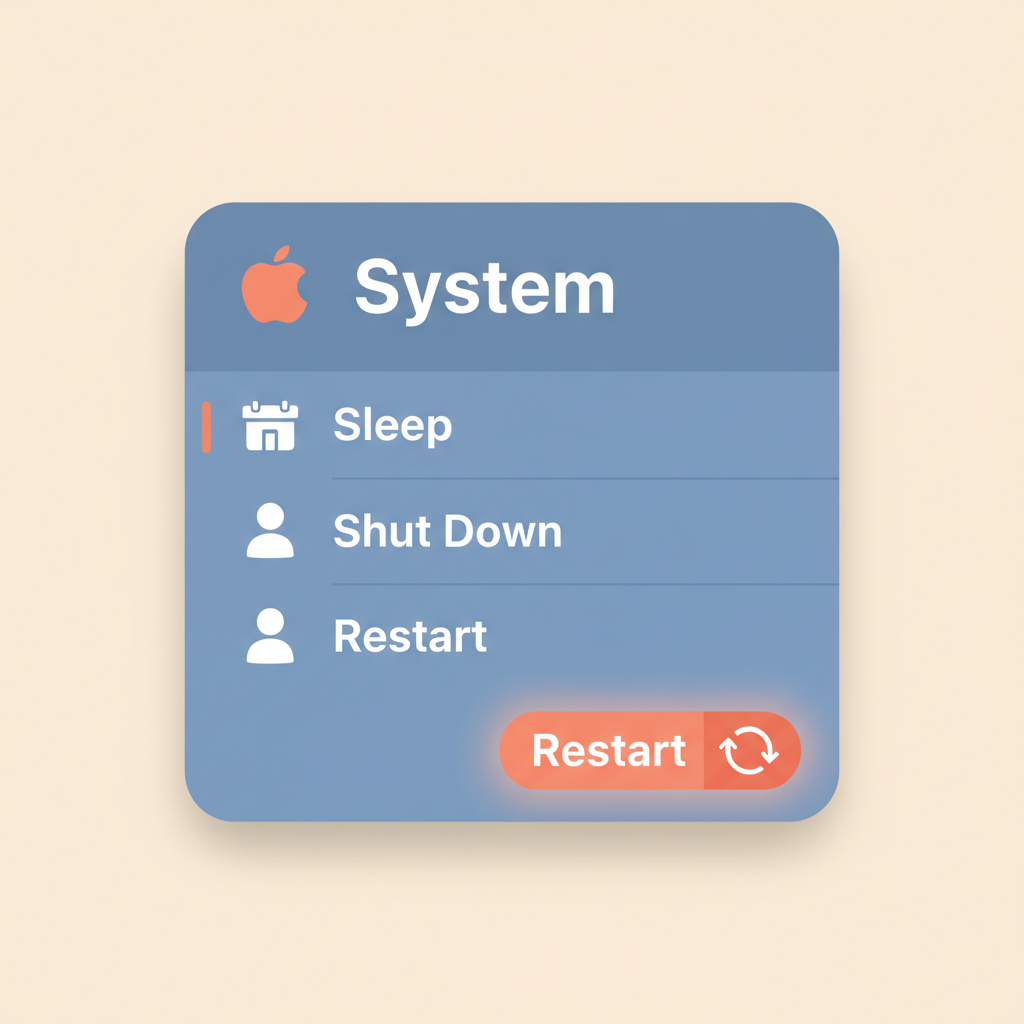
This is the simplest, most powerful fix. Click the Apple menu (Mac) or Start menu (Windows) and choose 'Restart'. Wait for it to come fully back on.
💡 Restart at least once a week — it keeps things smooth.
Close programs you aren't using

Look at the bottom of the screen. Each open program shows there. Right-click each one you're not using and choose 'Close' or 'Quit'.
Close extra browser tabs
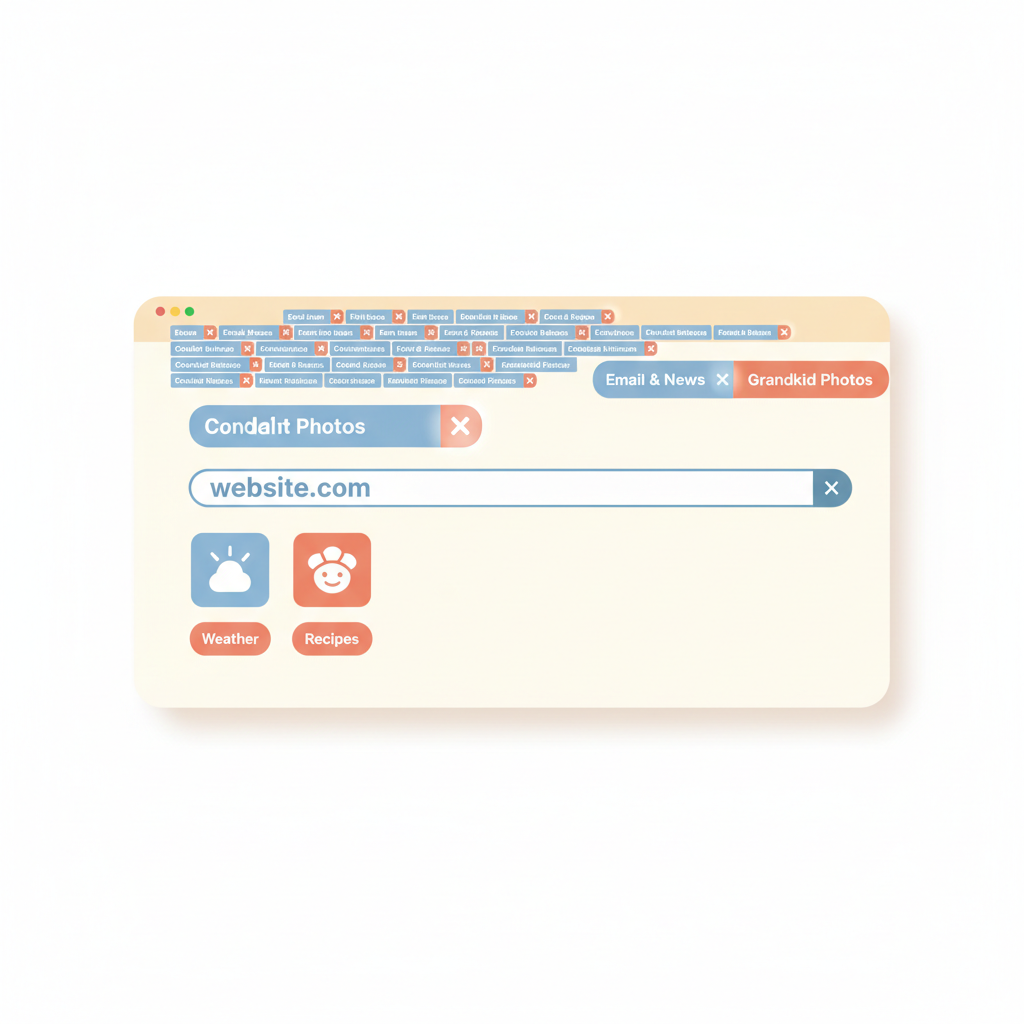
Every tab open in Chrome, Safari, or Edge uses memory. Click the small X on tabs you no longer need. Keep just two or three at a time.
Empty the trash or recycle bin
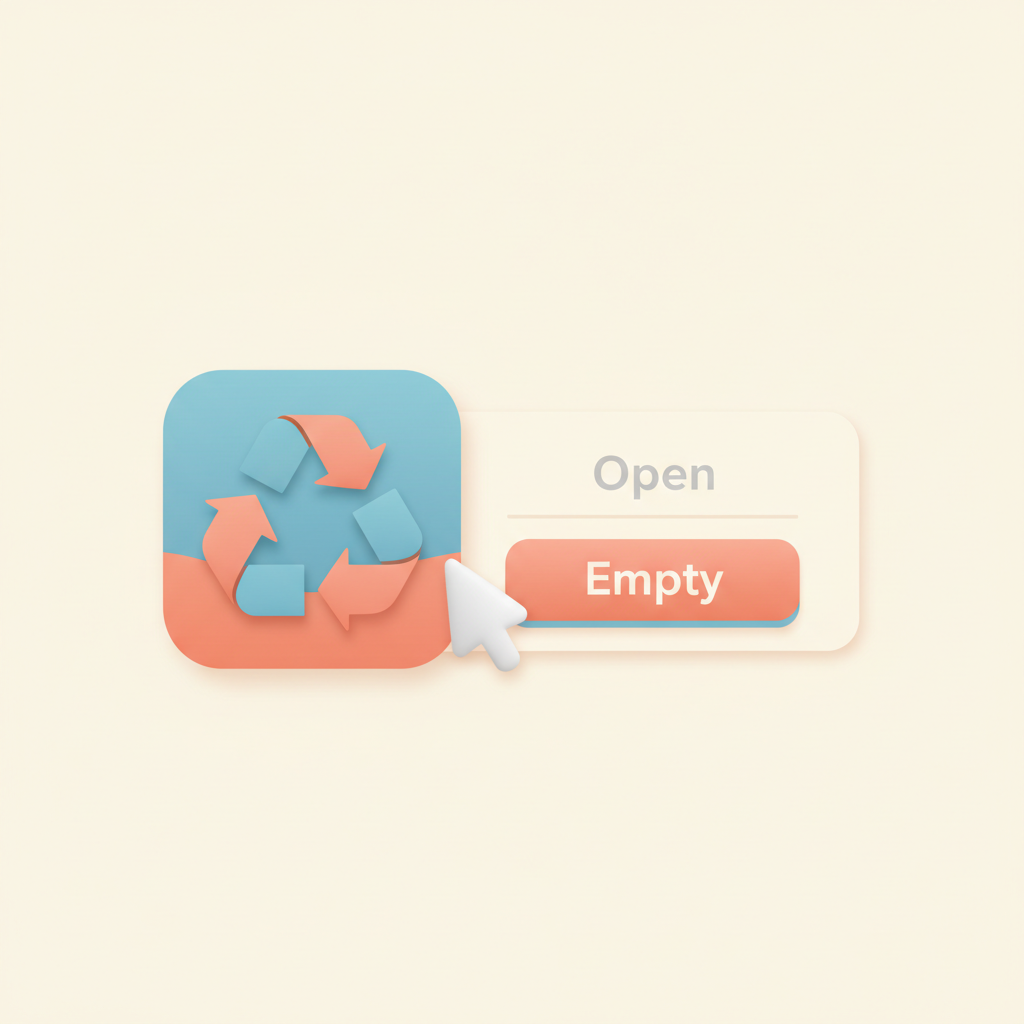
Right-click the Trash (Mac) or Recycle Bin (Windows) icon and choose 'Empty'. This frees up storage space and helps performance.
Check for updates
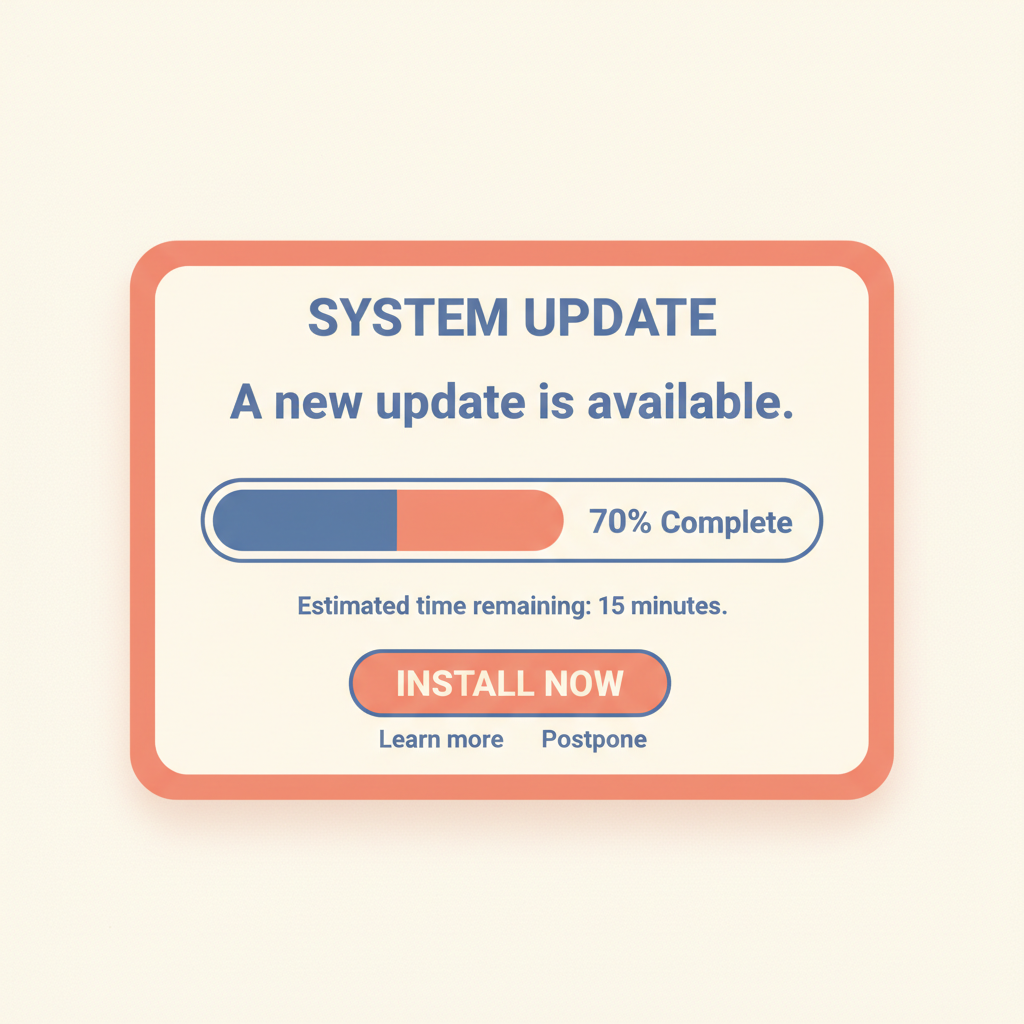
Open Settings → 'Update & Security' on Windows, or 'General → Software Update' on Mac. Install anything waiting. Updates fix slow-down bugs.
If still slow, leave it on overnight

Sometimes the computer needs to finish big background tasks. Leave it plugged in and on overnight, then restart in the morning.

Stuck on a step?
Take a picture of your screen and I will tell you exactly what to click.
New to screenshots? On Windows press the "PrtScn" key. On a Mac press Shift + Command + 4.